Public holidays, weekends and company closures
Importing each country's official holidays from Google, adding your own, deciding whether they consume leave, syncing them every year, setting Saturday and Sunday and defining company closures.
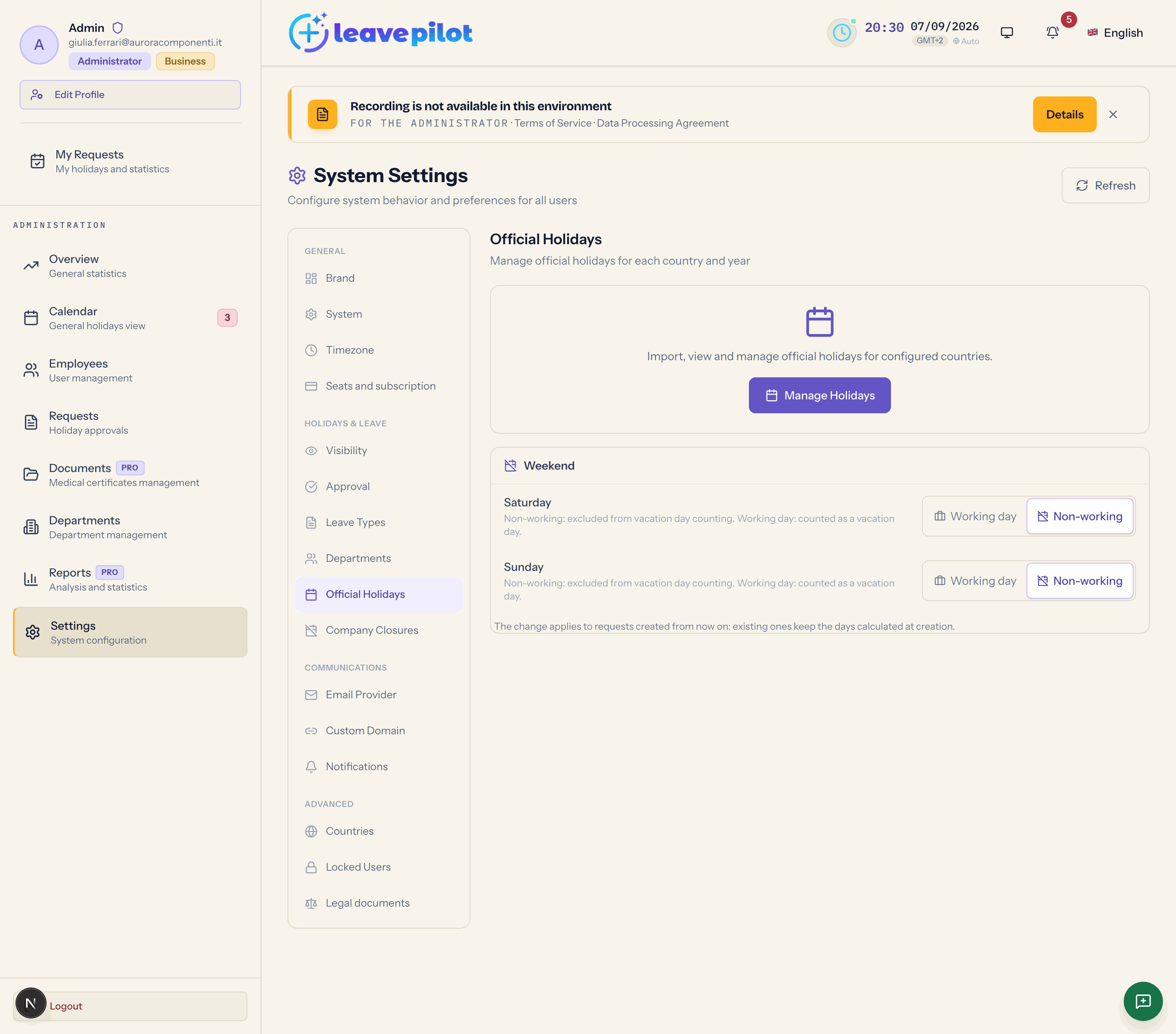
Public holidays decide which days are not deducted from leave. They are managed in the Official Holidays section (the card carries the same name, with the line "Manage official holidays for each country and year"), which also holds the working week. Company closures are in the Company Closures section.
How a public holiday affects leave
When the working days of a request are counted, days marked Holiday in the person's country are left out (the country in their profile, otherwise their department's, otherwise Italy). Holidays marked Working Day (occasions such as Father's Day) are not left out. A public holiday that falls at the weekend does not count twice.
For a request that runs into a year whose holidays you have not imported yet, the fixed date ones (Christmas, 15 August, 1 May) are projected automatically into the new year; the moving ones (Easter, Easter Monday) are not. A request that falls entirely in a year that has not been imported leaves out no holiday at all: import the year before people start asking for leave in that period.
Manage Holidays
The Manage Holidays button opens the Locations & Official Holidays window, with the three point Procedure: pick country and year, import from Google or add by hand, use Sync at least once a year.
- Select Country: the list of the 241 countries that have a Google holiday calendar (Italy (IT) is preselected). The country must also be present in Countries, otherwise the list stays empty and adding by hand fails.
- Select Year: from last year to three years ahead.
- The buttons Import from Google, Add Holiday and Sync.
For every holiday of the year you see the name in the interface language, the date, the source (Google or Manual), Recurring if it is annual, and the pill Holiday (red) or Working Day (blue): one click flips it (Holiday marked as public holiday / Holiday marked as working day). The pencil opens the same window as adding by hand with the values already filled in: you can correct the Date, the Holiday Name (English), the Name (Italian), the Name (Spanish) and the Recurring Annually checkbox. This is how you translate the names that arrive from Google in English. To change only whether the holiday consumes leave, a click on the pill is enough. The bin deletes the holiday after a confirmation; with multiple selection you get Elimina selezionate (Italian for "delete selected", left untranslated in the interface).
Import from Google
The Find Holidays window looks for official holidays in Google's public calendar for a country and a year.
- Press Find Holidays: in the Confirm Import step you see the list with every holiday preselected; clear the ones you do not want and press Confirm Import ({n}). A note reminds you that some holidays may arrive in English: you can rename them with the pencil.
- With the Multi-Year Import checkbox you import the chosen year and the following one right away, with no preview.
On import, every holiday is classified automatically as Holiday or Working Day based on its name; when in doubt it is treated as a public holiday. Check the list after importing and correct the pills if you need to.
Add Holiday
The Add Custom Holiday window asks for Date, Holiday Name (English) (required), Name (Italian), Name (Spanish) and the Recurring Annually checkbox. Press Save Holiday. The holiday starts out as Holiday; change the pill in the list if it has to be a working day.
Nothing stops you from having two holidays on the same day for the same country: they coexist, and the day is still left out of the count only once. Synchronisation too, when it finds a date already taken, warns that it will keep both.
Use custom holidays for the patron saint, or for a closing day you want to consume leave in a different way.
Sync
The Manual Holiday Synchronization window compares the holidays already imported with Google's current ones, so you notice institutional changes. Choose Country (All countries or one of them) and Year (current, next or the one after), press Load Preview and read the Changes Summary: To Add, To Update, No Change, with the NEW / UPDATE detail and the Previous: value. If a new holiday falls on a date already taken, a warning says that both will be kept. Apply Changes writes to everyone's calendar immediately.
Every year, on 1 December, LeavePilot imports next year's holidays automatically for every active country of the organisation.
Weekend
The Weekend group has two selectors, Saturday and Sunday, with the options Working day and Non-working ("Non-working: excluded from vacation day counting. Working day: counted as a vacation day."). Default: both Non-working.
The change applies to requests created from that moment on: existing ones keep the days worked out when they were created. The other days of the week cannot be set.
Save with Save changes.
Company closures
The Company Closures section ("Define company closure periods. They are only a visual marker in the calendar: during a closure, leave days are still counted normally.") is there to show everyone when the company is shut.
- Show closures in the calendar: when off, the periods stay saved but do not appear. Adding a closure turns it on by itself.
- Add closure creates a Closure {n} box with the Name (optional, up to 80 characters, for example "Summer closure") and the Period. Remove deletes the box.
- Save closures confirms with Company closures saved. Up to 50 periods.
Closures appear in everyone's calendar, in light red, and in the team holiday summary. They do not reduce the days deducted: if people should not use up leave during a closure, add those days as custom holidays.