Signing in to the platform
The address you sign in from, the sign-in page, forgotten passwords, account lockout, how long a session lasts and how to choose the language.
The right address
You sign in from your organisation's workspace, which has one of these two addresses:
nome-azienda.leavepilot.app- an address chosen by your company, for example
leave.yourcompany.com
The public site leavepilot.app has no sign-in form: if you land there, the page You sign in from your organisation's address explains why and sends you back to the site. Your workspace address is in the invitation email, or ask whoever administers LeavePilot in your organisation.
The sign-in page
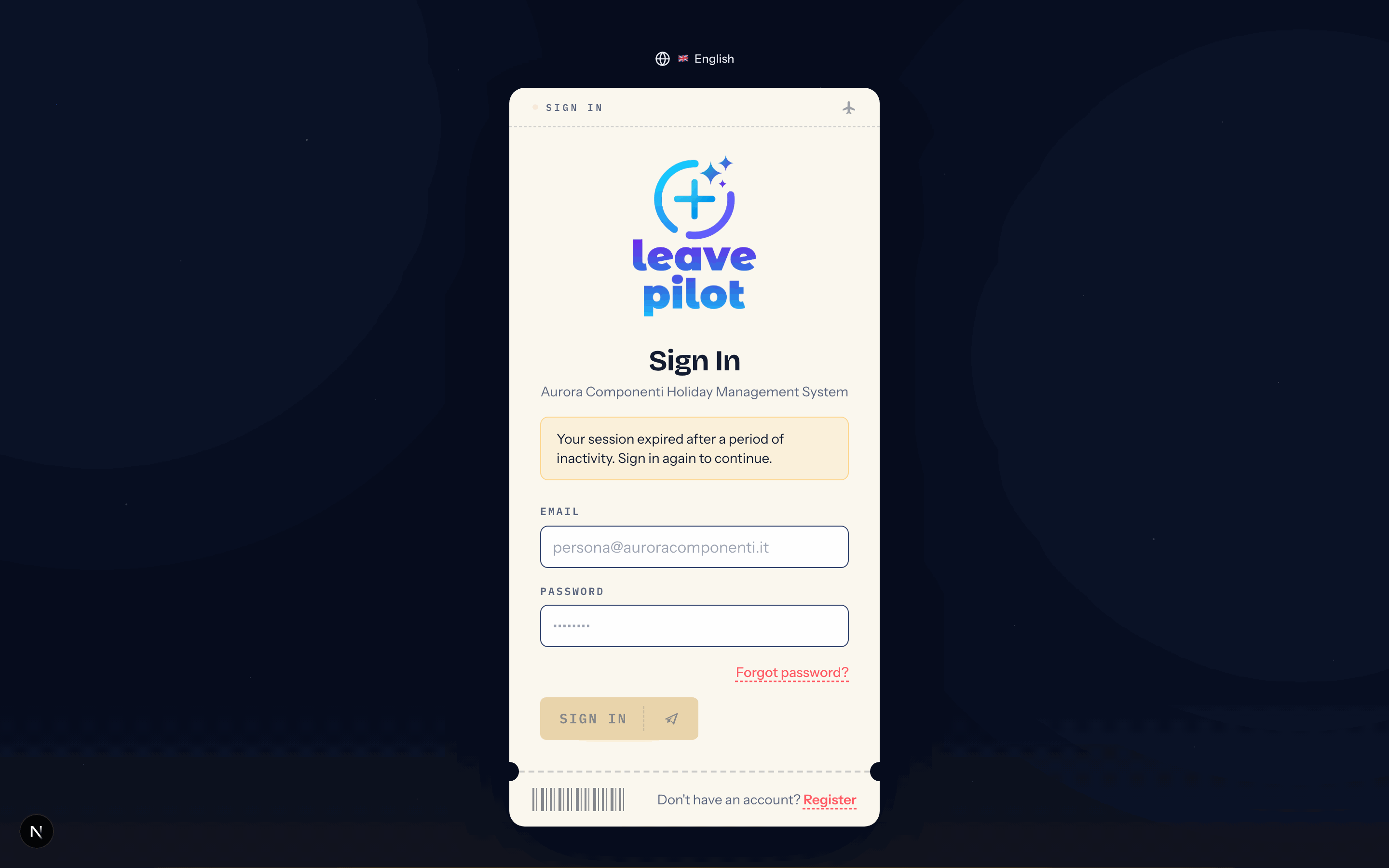
The page is shaped like a boarding pass, with your organisation's logo (or the LeavePilot one) and the subtitle {company name} Holiday Management System.
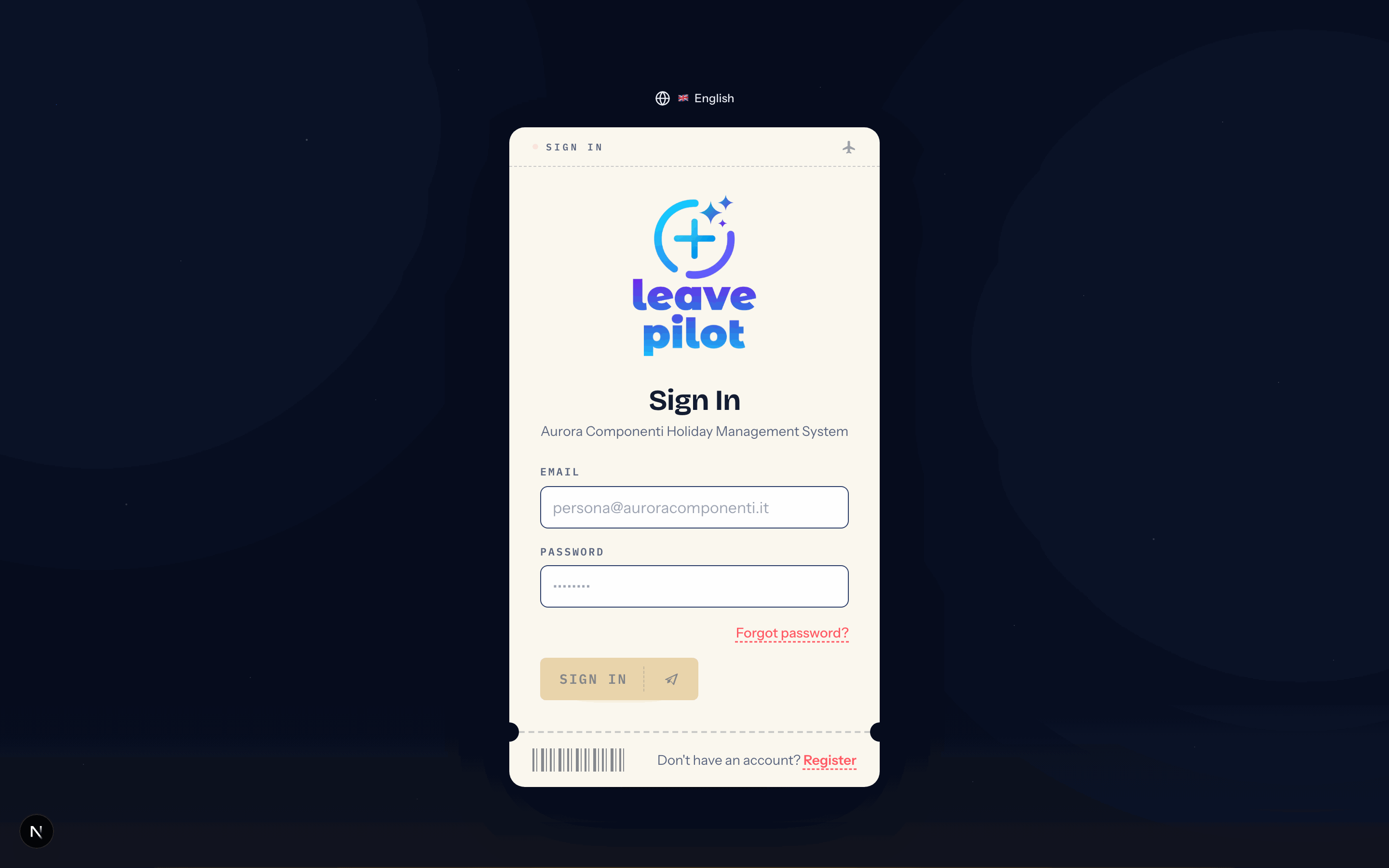
- Email and Password: the Sign In button becomes active once both are filled in.
- Forgot password? opens password recovery (see below).
- Don't have an account? Register only appears if your organisation has left self-registration open. See Registering yourself.
- The language switcher sits above the card; the links to the legal documents are at the foot of the page.
After signing in, administrators land on the control panel and everyone else on their own dashboard. If you were trying to open a specific page, you are taken back to it. On your first sign-in you go through onboarding first.
Error messages
| Message | What it means and what to do |
|---|---|
| Credenziali non valide (Italian for "invalid credentials", left untranslated in the interface) | Wrong email or password. Check the capitals and any trailing space; if in doubt use Forgot password?. |
| Verify your email before logging in. Check your inbox (and spam folder). | You registered yourself and have not opened the verification link yet. Resend verification email sits under the message. |
| Account temporarily locked due to too many failed attempts. | See Account lockout. |
| Account permanently banned. Contact the administrator. | Only an administrator can unlock you, from Settings › Locked Users. |
| Troppi tentativi di login falliti. Riprova più tardi. (Italian for "too many failed login attempts, try again later", left untranslated in the interface) | Too many attempts came from your connection in a short time. Wait half an hour. |
| Account non autorizzato (Italian for "account not authorised", left untranslated in the interface) | The account has been deactivated by the administrator. |
| Your LeavePilot account is temporarily suspended. Contact support to reactivate it. | The whole organisation is suspended. There is a button under the message to write to support. |
| Address not recognised. Sign in from your workspace address. | You are using an address that matches no organisation. |
| Your session expired after a period of inactivity. Sign in again to continue. | An amber notice, not an error: the session ran for its maximum time. Sign in again. |
Account lockout
Two independent protections defend accounts against repeated attempts.
- Per connection: after 5 failed attempts in 15 minutes, no further attempt is allowed from the same network address for 30 minutes.
- Per account, counting only wrong passwords on an email that exists: from 10 attempts the account stays locked for 15 minutes; from 20 for an hour, and administrators get an alert; from 30 the lock is permanent and an administrator has to remove it.
A successful sign-in resets the counters. A successful password reset also clears the temporary lock, but not the permanent one. Administrators see and unlock accounts from Locked users. All the sign-in protections are described in Sign-in security.
Forgotten password
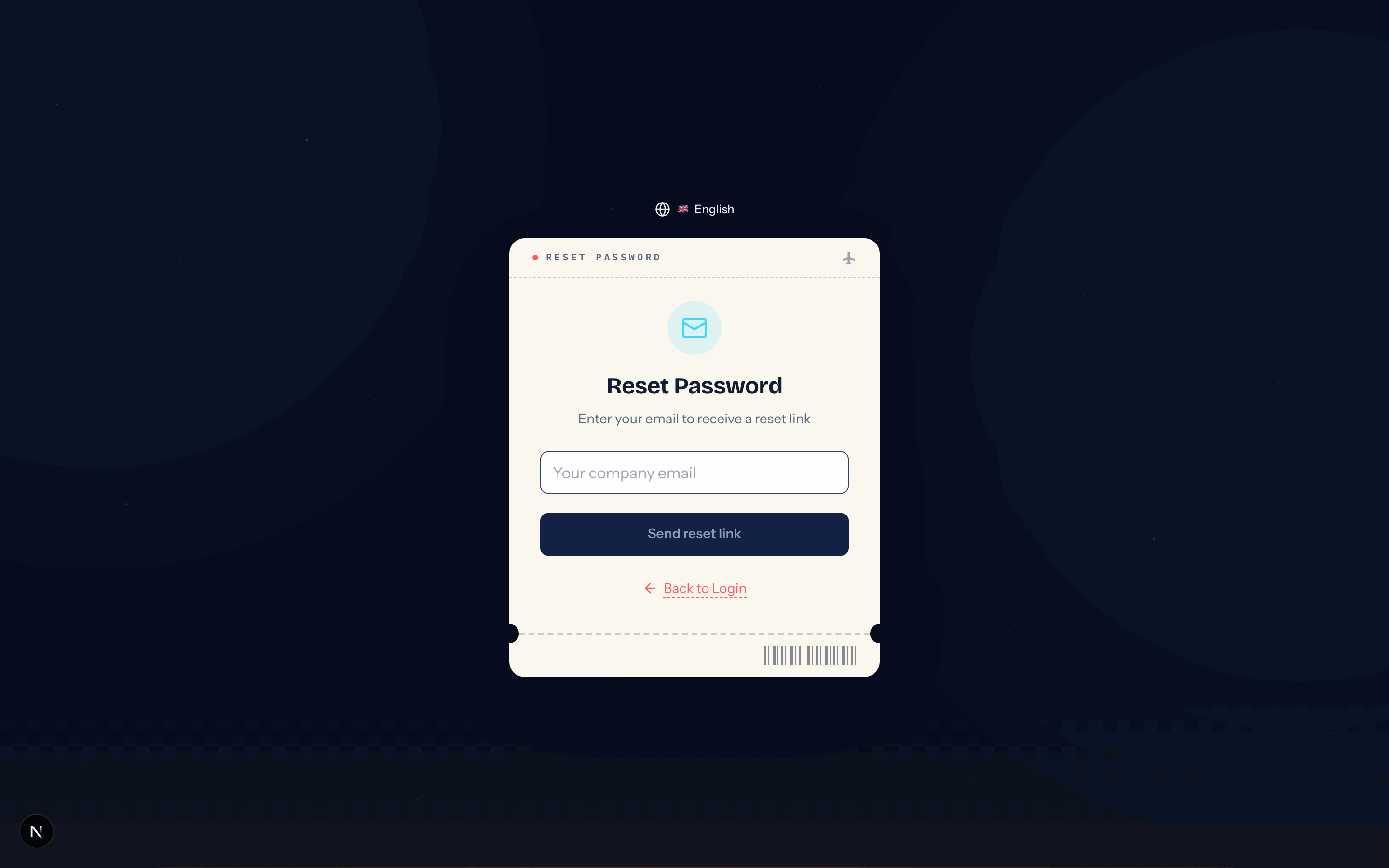
- On the sign-in page press Forgot password?.
- Enter your company email and press Send reset link.
- You always see Email sent!, whatever the address: that is a security choice, so nobody can find out which emails exist. The message only really goes out for active accounts, and no more than once every two minutes.
- The email Reset your password - {company name} contains the Reset Password button. The link is valid for 1 hour.
- On the New Password page type and confirm the password: the Password requirements list ticks off as you go, and the Update password button becomes active once everything is in order. Then Go to Login.
If the link has expired or was already used you find out after pressing Update password: the page shows Link expired or Invalid link and offers Request new link.
Registering yourself
When the organisation allows it, Register appears on the sign-in page. The Register form asks for Full name, Company email, Password and Confirm password (with the requirements list), Country and Preferred Language.
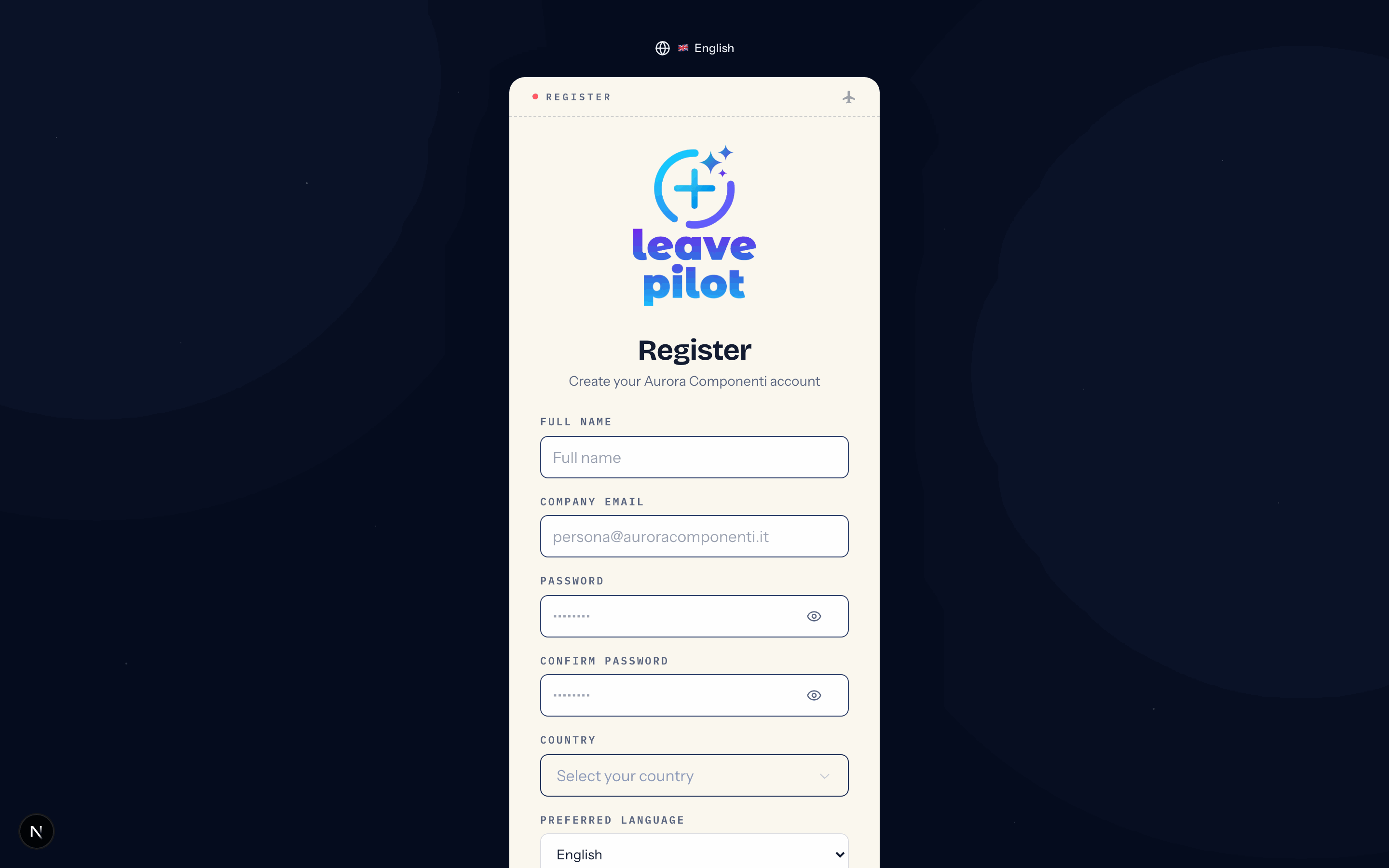
The password requirements list also includes Not a common password and Does not contain your username. Two informative lines appear below the form, about how your data is used and which company domains are allowed.
- If the administrator has restricted the allowed domains, your email has to belong to one of them; otherwise you get Email non valida. Usa la tua email aziendale (@dominio…) (Italian for "invalid email, use your company email", left untranslated in the interface).
- If registration is closed: Le registrazioni sono chiuse. Chiedi all'amministratore un invito. (Italian for "sign-ups are closed, ask your administrator for an invitation", left untranslated on this form).
- If the email is already registered: Utente già registrato con questa email (Italian for "a user is already registered with this email", left untranslated in the interface).
- If the organisation has run out of seats on its plan: Limite dipendenti raggiunto (Italian for "employee limit reached", left untranslated in the interface). In that case the administrator has to free a seat or activate a plan.
After Register you see Registration complete!, with the Resend verification email button and a sixty-second countdown, and you receive Verify your email - {company name}, with a link valid for 24 hours. Open it: the page confirms Email verified successfully! and shows the Go to Login button. If the link has expired you can ask for a new one from the same page (no more than one every two minutes). Your first sign-in continues with onboarding: depending on your organisation's settings the account is activated straight away or waits for an administrator's approval.
How these rules work on the administrator's side is explained in System: registration and domains.
The session
- A session lasts one hour from sign-in. Thirty seconds before it expires you are taken back to the sign-in page with the notice Your session expired after a period of inactivity; just sign in again. The check also runs when you come back to the browser tab after a while.
- To leave earlier use Logout at the bottom of the side menu.
- There is no "remember me" box.
The language
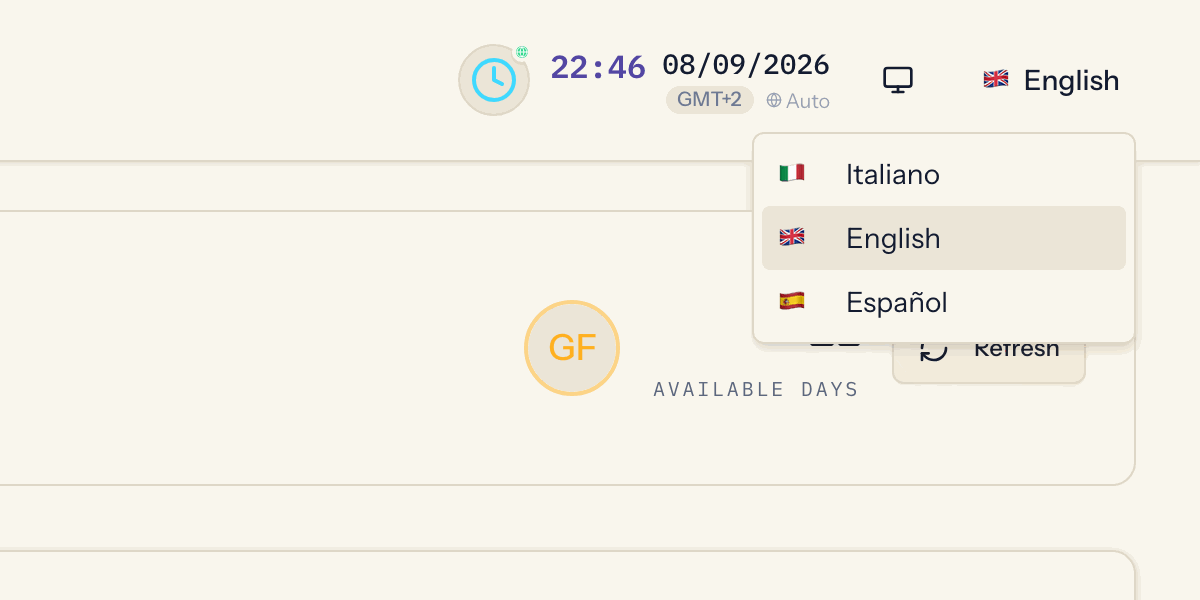
The interface exists in Italian, English and Spanish. On arrival the language is chosen in this order: the one already in the address, the one picked by hand recently on that browser, the stored one, the browser's own, otherwise Italian.
- On the sign-in page and during onboarding the globe switcher offers Italiano, English, Español.
- Inside the application the switcher is at the top right. The choice stays on that browser for 30 days, or until you save a language in Edit Profile, which replaces it. The profile language governs the emails in any case.