Requesting leave
The four-step form for requesting vacation, hourly leave, sick leave with a medical certificate and smart working, with all the rules and the messages you may run into.
A request opens in three ways: from the New Request button in the sidebar, from the My Requests tab, or from the calendar by picking the days on the grid. In every case you get the same four-step form.
The dedicated page is called New Holiday Request and shows three boxes above the form: Available days (vacation), Pending and Approved.
Step 1: Select Period
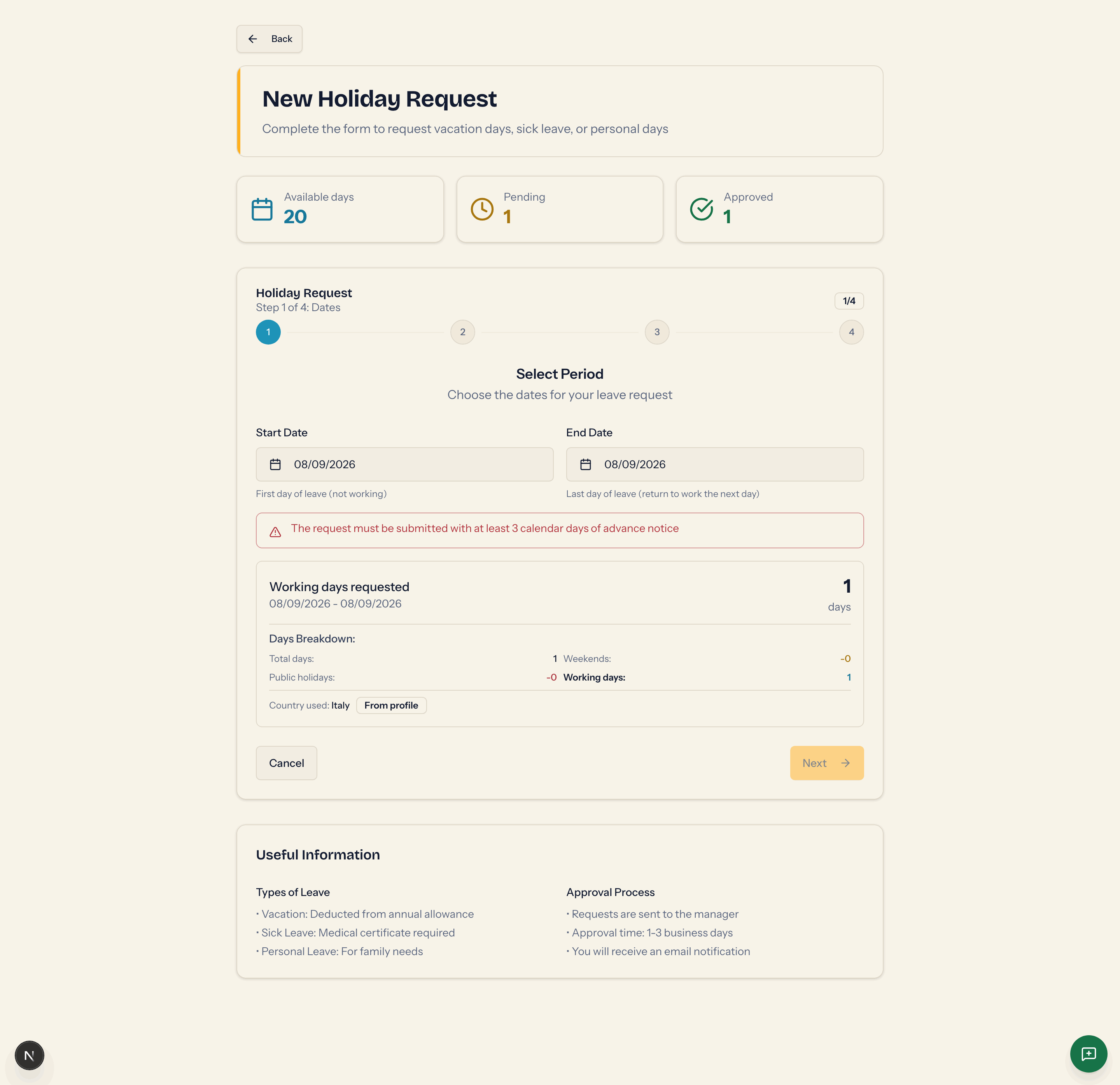
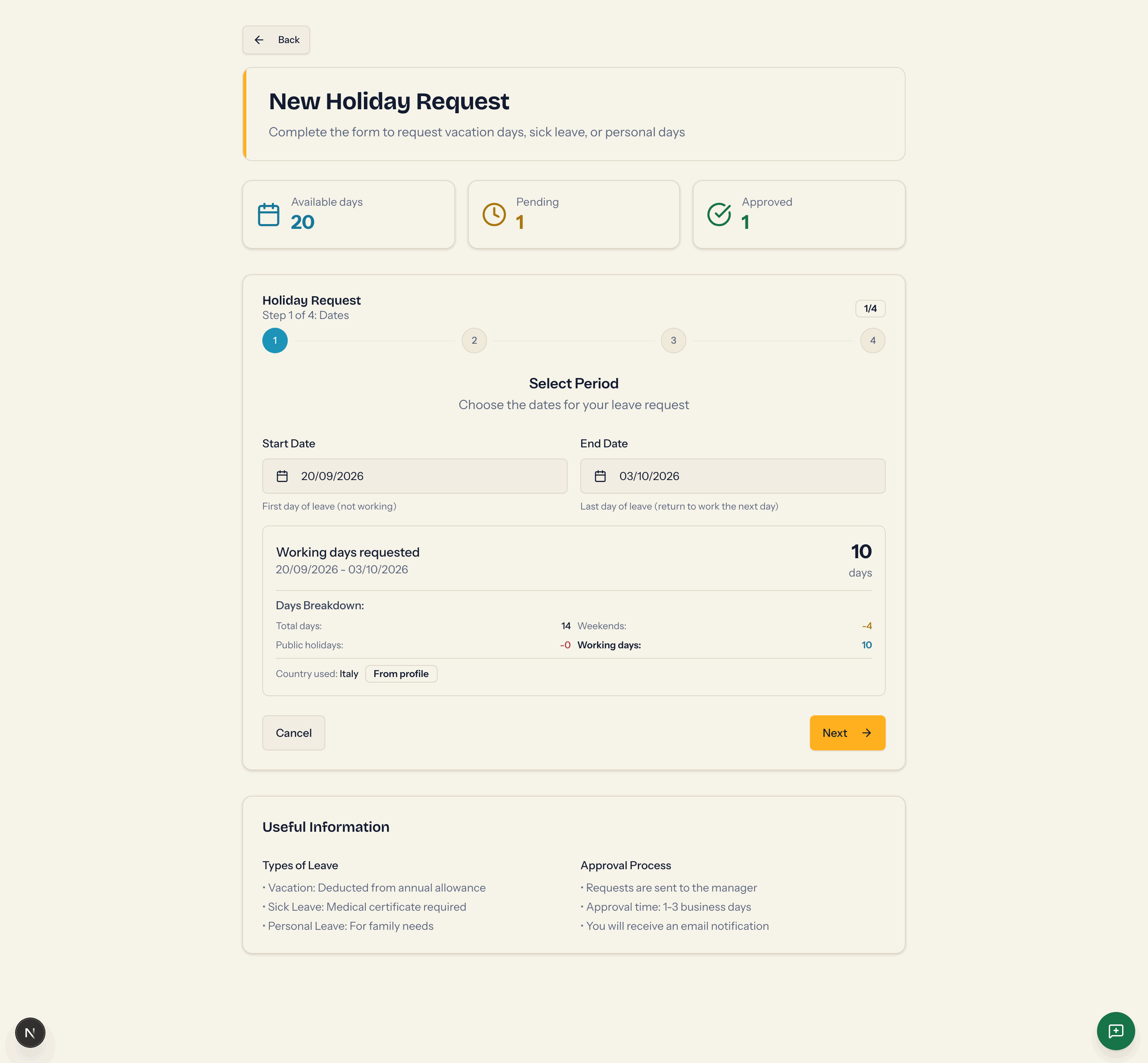
- Start Date: the first day of the absence ("First day of leave (not working)").
- End Date: the last day of the absence ("Last day of leave (return to work the next day)"). It becomes active once you have picked the start and cannot come before it.
When it opens, the form puts today's date in both fields: if your organisation requires a minimum notice period, the red warning shows immediately and Next stays disabled until you move the dates further out.
In the date picker:
- you cannot pick days in the past, for any type of leave, nor days more than a year from today;
- days already taken by your own approved or pending requests are disabled and coloured by type;
- public holidays in your country and Sundays have their number in red: they are not deducted;
- your colleagues' leave does not block any dates.
While the platform checks that the dates are free, Checking conflicts with other requests... appears.
Below the dates comes the Working days requested box with the count and the Days Breakdown: total days, excluded weekends, excluded public holidays (listed by name) and working days. The Country used row says which country was used for public holidays and where it comes from: From profile, From department or Default.
Messages you may see at this step:
| Message | What to do |
|---|---|
| Selected dates overlap with an existing request | You already have an approved or pending request on those days. Pick other dates, or delete the earlier request first. |
| The request must be submitted with at least {n} calendar days of advance notice | Your organisation requires a minimum notice period. Move the start date forward. |
| The maximum number of consecutive working days is {n} | Your organisation caps the length of a single request. Split it in two. |
| End date must be equal to or after start date | Correct the dates. |
The overlap check ignores the type: on days already covered by one of your approved or pending requests you cannot add another one, not even of a different type. So you cannot ask for smart working during a personal day you have already requested, nor for vacation overlapping a period of sick leave. Rejected requests block nothing: if you need a change, delete the existing request and create both again with the right dates.
Next becomes active when both dates are valid and no warning is showing.
Step 2: Leave Type
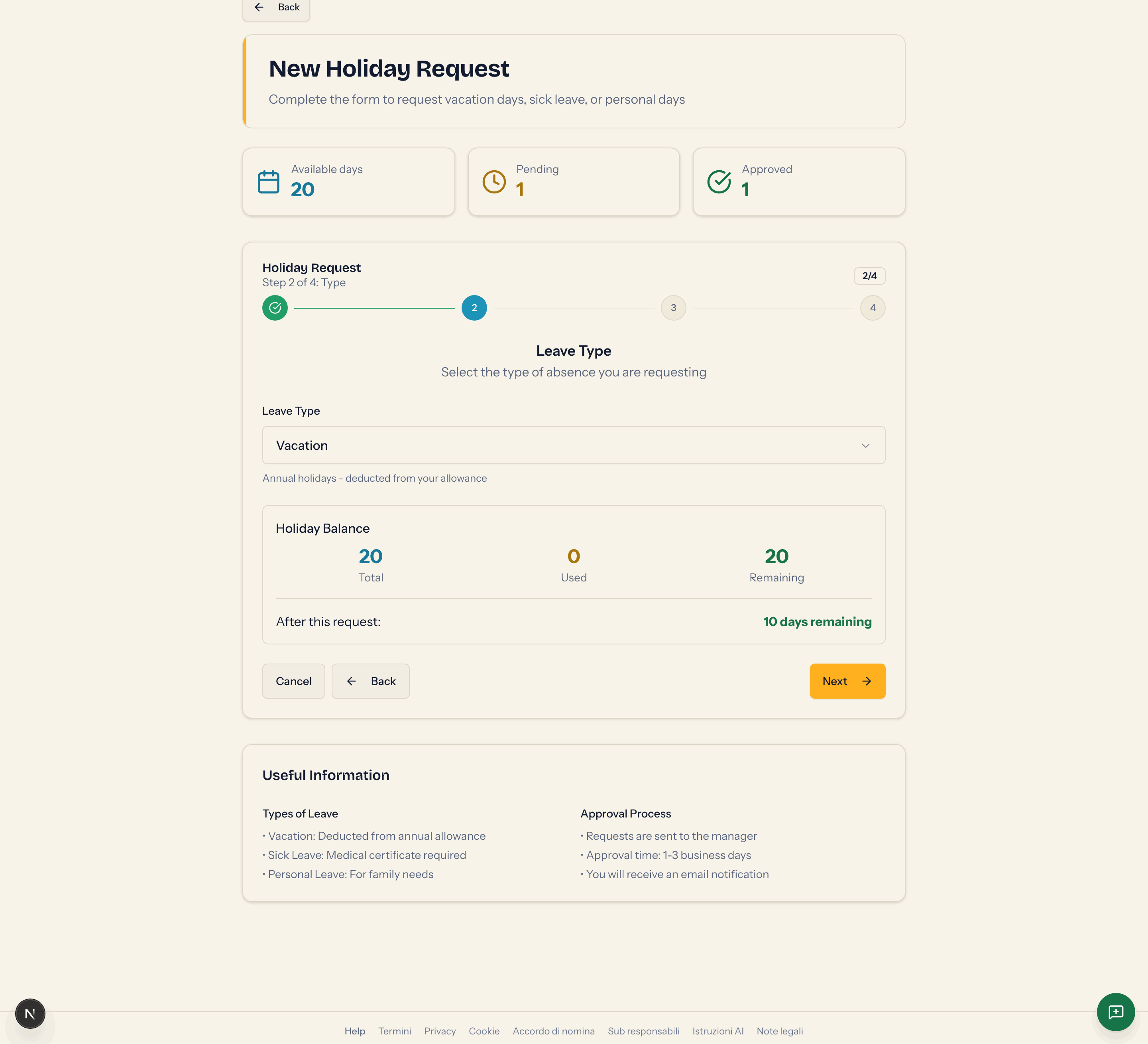
The Leave Type menu offers:
| Type | Description shown | Notes |
|---|---|---|
| Vacation | Annual holidays - deducted from your allowance | deducted from the annual vacation allowance |
| Sick leave | Sick leave - medical certificate required | no day limit; certificate at step 3 |
| Personal day | Personal leave - for personal and family needs | full day or by the hour |
| Smart Working | Remote work — from home or other location | full day or by the hour, across several days too |
The default type is Vacation. Choosing Vacation brings up the Holiday Balance box with Total, Used, Remaining and the line After this request: {n} days remaining. If the result is negative you get You do not have enough holiday days available for this period and cannot go on.
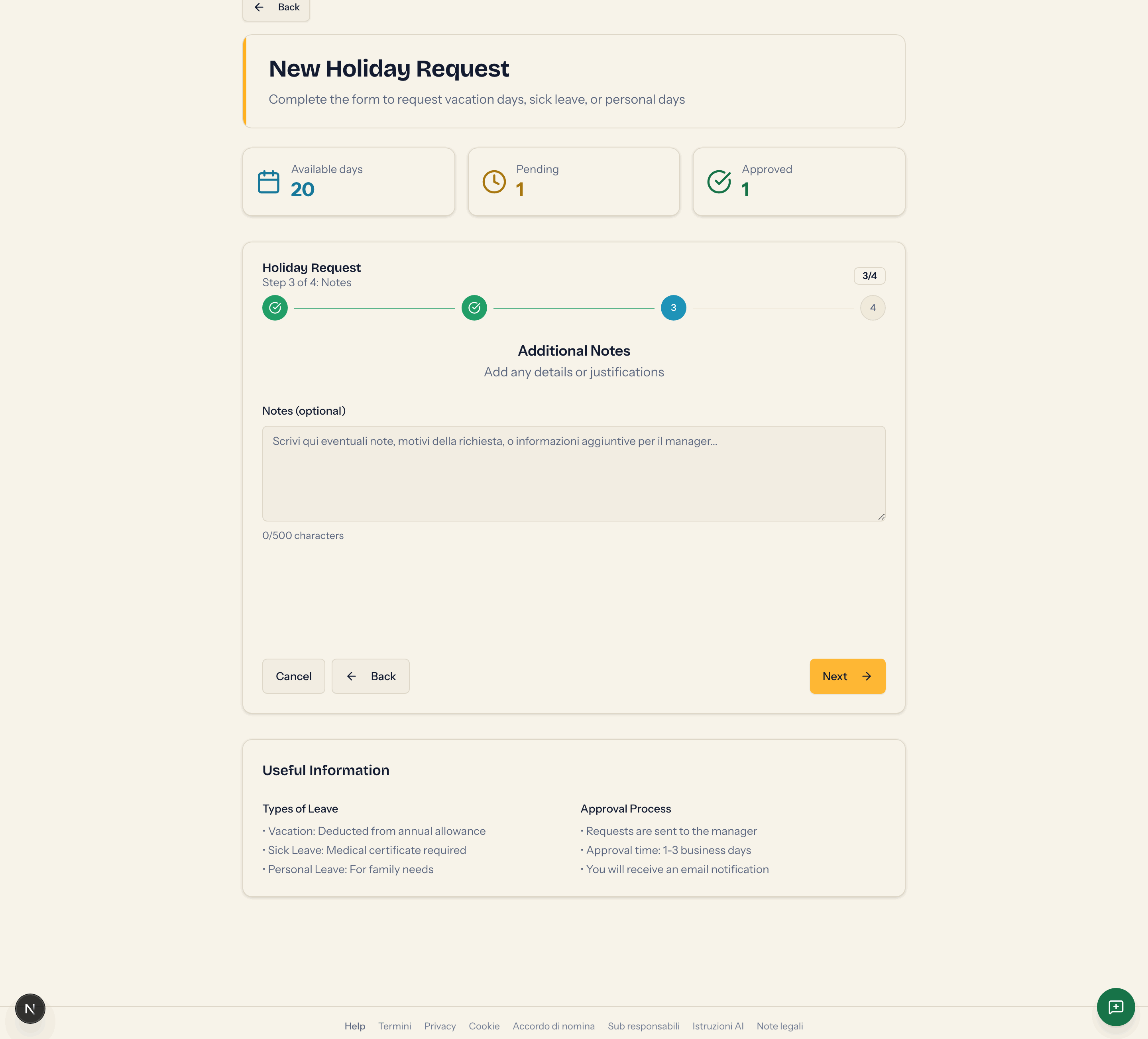
Step 3: Additional Notes
Hourly duration (personal day and smart working)
The Leave duration (or Smart working duration) box has two choices: Full day and Specific hours. With hours you get Start time (from 6:00 to 21:00) and End time (up to 22:00), plus the Hours requested box.
- Minimum 1 hour, maximum 8 hours per day.
- An hourly personal day covers a single day: the end date is aligned with the start date.
- Hourly smart working can cover several days: the same hours on every working day.
Notes
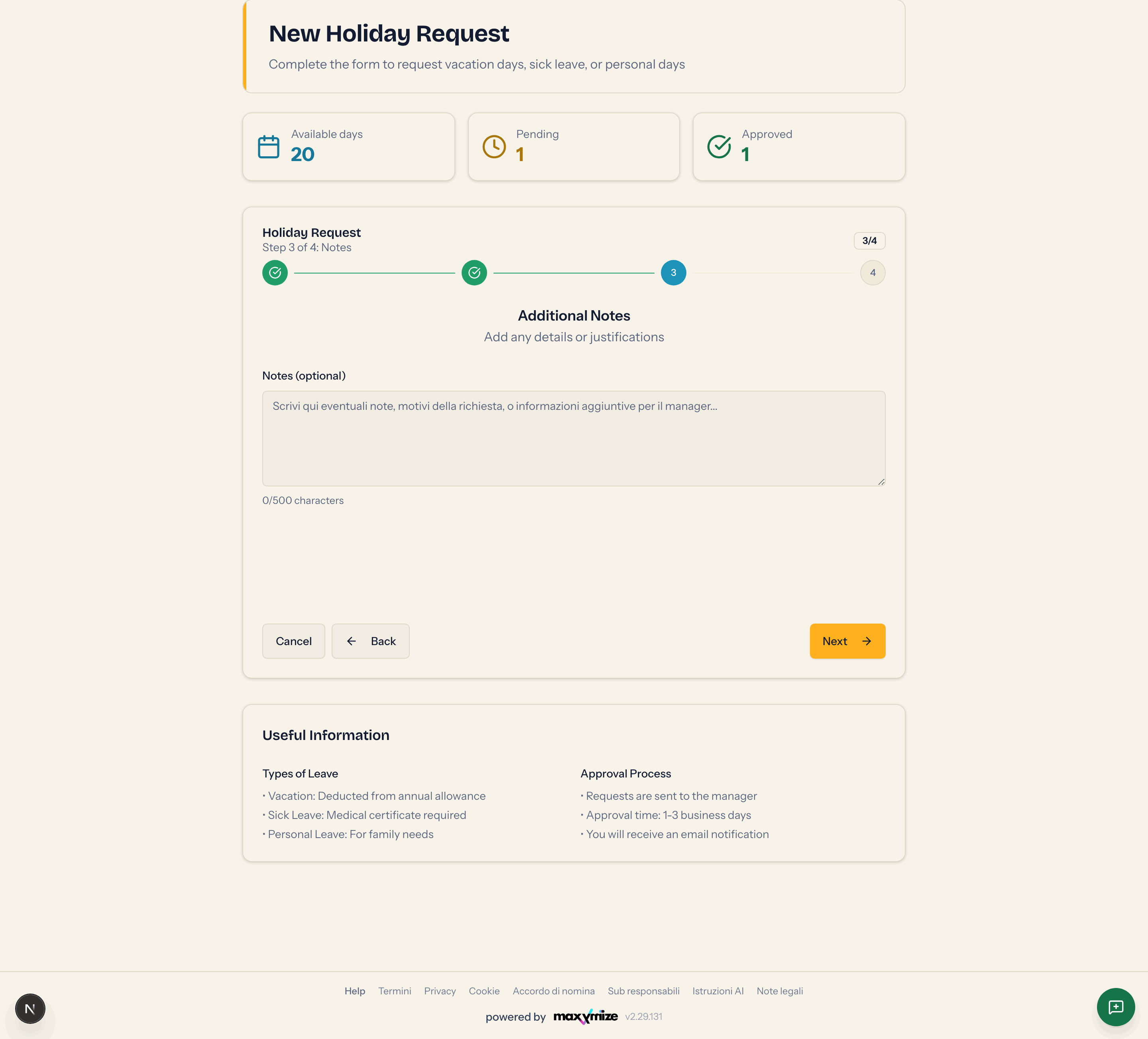
The Notes (optional) field takes up to 500 characters. Notes are visible to whoever approves and appear in the request details.
Medical certificate (sick leave only)
For sick leave the certificate is mandatory, but you decide when to provide it. The Which document to upload box reminds you that what is needed is the sickness certificate summary (the Italian attestato) with the protocol number and the dates, the one you find in your personal area on the INPS portal, not the certificate with the diagnosis.
Pick one of the Medical Certificate Options:
- Upload the medical certificate now: drag the file into the Upload Medical Certificate area or tap it to pick one. The only formats that make it through are PDF, JPG and PNG, up to 4 MB, even though the upload area also lists GIF and WebP and the file picker offers Word documents. The file is encrypted and kept for 12 months; you and the administrators can download it again from the request details.
- I commit to provide it later via email to company management: Commitment Confirmed appears, with a deadline of 3 working days from submitting the request.
Without one of the two choices you cannot go on.
The certificate can only be attached while you are creating the request: on a request already submitted there is no way to upload it afterwards. If you chose I commit to provide it later, send it by email to management within the 3 working days. If you still want the file to live on the platform, delete the request and create a new one with the same dates, choosing Upload the medical certificate now.
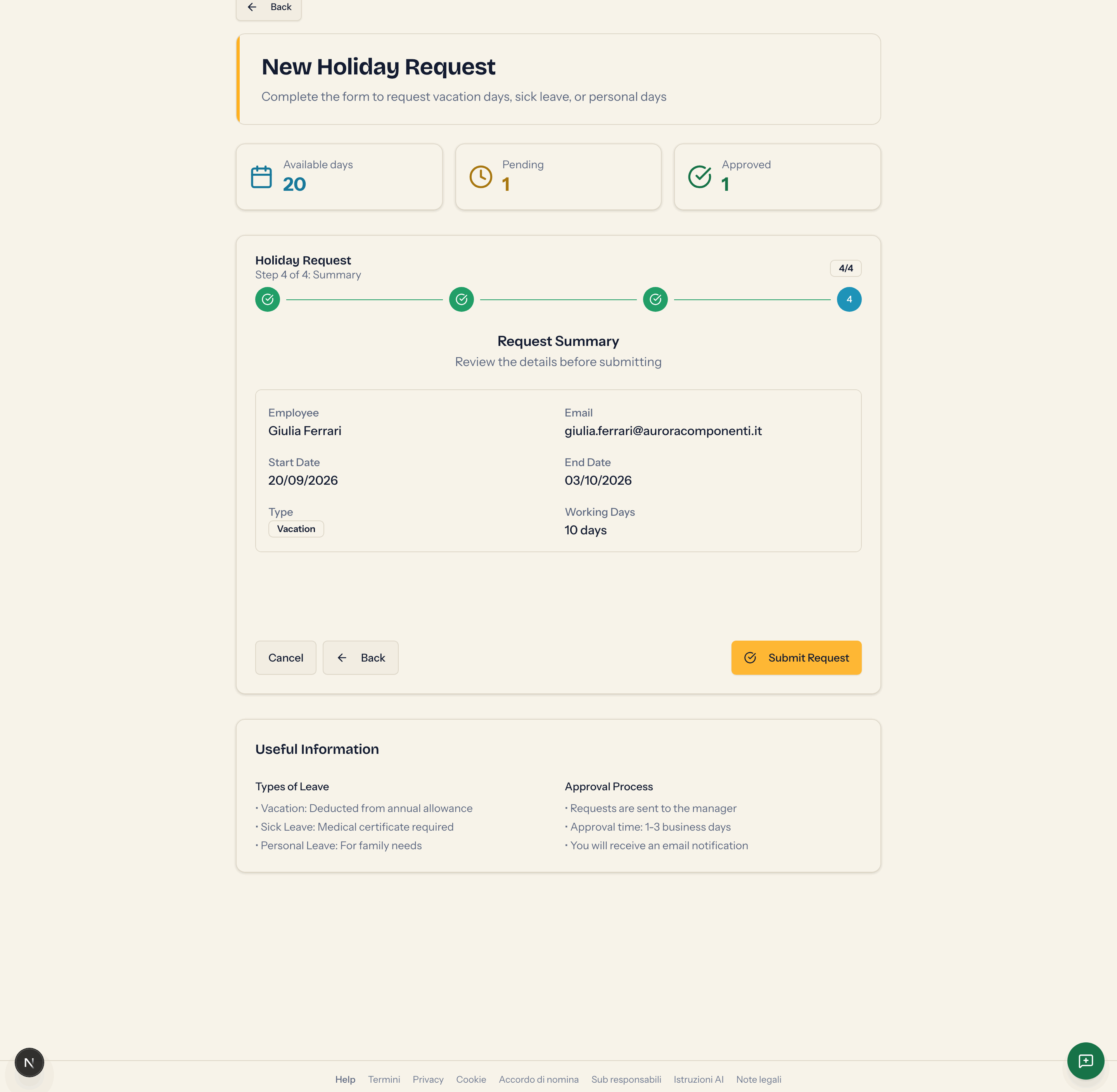
Step 4: Request Summary
Check Employee, Email, Start Date, End Date (or Hours requested with the times), Type, Working Days, any Note (the Italian word, left untranslated in the interface) and, for sick leave, the file you picked or the commitment you made. If the request goes beyond your holiday days a warning appears. Press Submit Request.
What happens after you submit
- If your organisation approves by hand, the request starts out Pending: you see Richiesta ferie inviata con successo! (Italian for "holiday request submitted successfully", left untranslated in the interface) and the approvers (administrators and, where set up, your department manager) get the email New {type} Request from {your name}.
- If your organisation uses automatic approval, the request starts out Approved: you see Richiesta ferie approvata automaticamente! (Italian for "holiday request approved automatically", left untranslated in the interface).
- After two seconds you are taken back to the dashboard. The request appears in My Requests and in the calendar (amber if pending, green if approved).
- The requested days come off your available balance as soon as the request is pending, so you cannot book the same days twice.
- You will get an email when the request is approved or rejected. No confirmation email is sent for the submission itself.
If the medical certificate fails to upload but the request has been created, the message tells you so: the request stays valid and you can send the certificate to management by email.
The Useful Information box at the foot of the page sums up leave types and the approval process. The line "Approval time: 1-3 business days" is a general indication, not a rule the platform enforces.
The rules the server checks
Even though the form checks them in advance, these rules are applied when you submit:
- the dates must contain at least one working day (La richiesta deve includere almeno un giorno lavorativo, Italian for "the request must include at least one working day", left untranslated in the interface);
- for vacation, personal days and smart working counted in days, the year's approved and pending requests plus the new one cannot exceed the allowance for that type (Non hai giorni sufficienti per questo tipo di congedo. Disponibili: X, Richiesti: Y, Italian for "you do not have enough days for this type of leave, available X, requested Y");
- for hourly requests the hours balance applies (Ore insufficienti. Disponibili: X, Richieste: Y, Italian for "not enough hours, available X, requested Y");
- the reference year is the one of the start date: a request straddling New Year counts entirely in the year it begins;
- sick leave has no allowance check.
Editing or cancelling
There is no editing in place: to change the dates or the type, delete the request from My requests and create a new one. Deleting gives the days back to your balance, even if the request had already been approved.