My requests
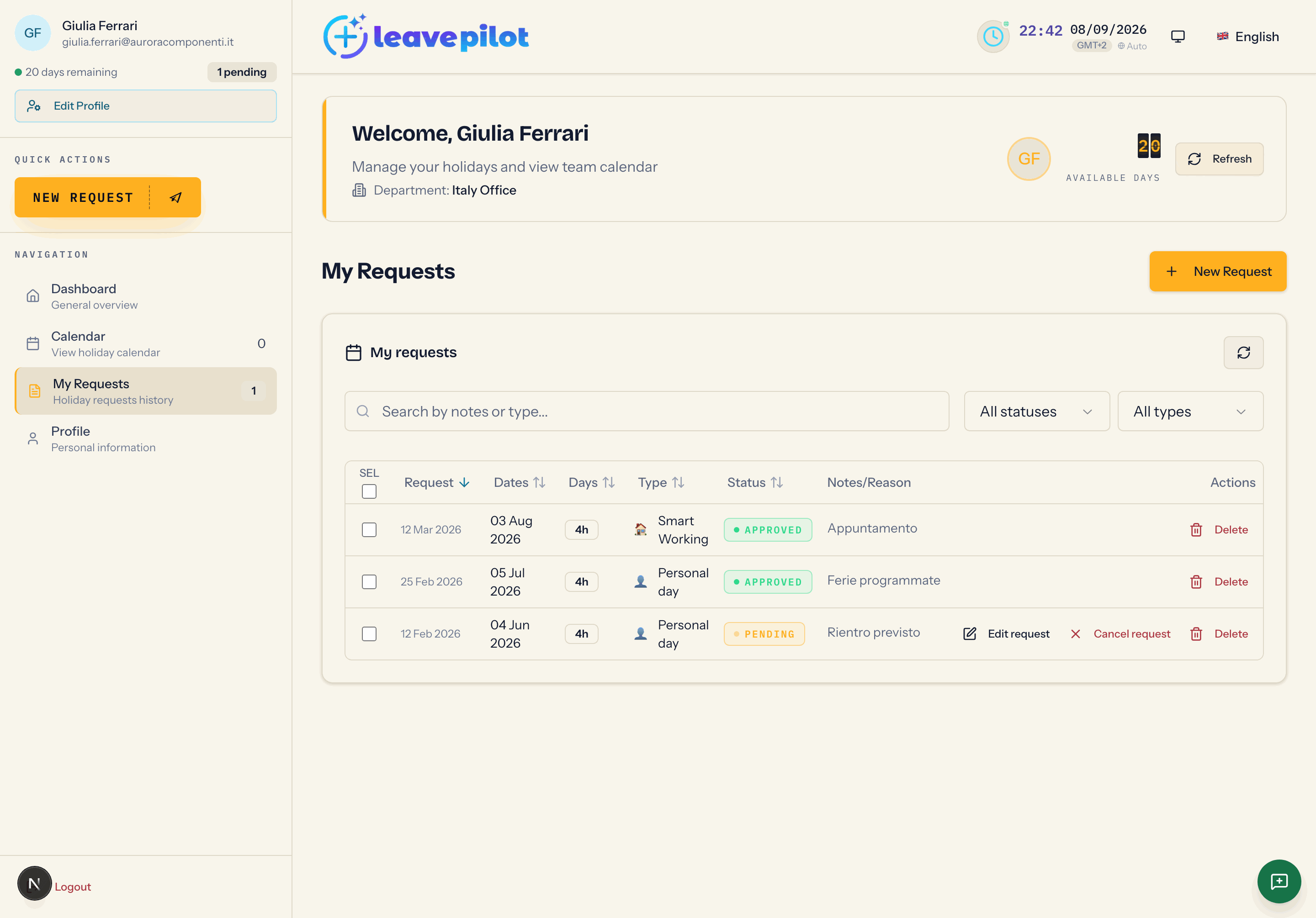
The table with the history of your requests: search, filters, sorting, rejection reason, single and bulk deletion.
The My Requests tab collects all your leave requests, of any type and any status. At the top there is the New Request button.
Search and filters
- The Search by notes or type... box filters on the text of the notes and on the name of the type.
- The status filter: All statuses, Pending, Approved, Rejected, Cancelled.
- The type filter: All types, Vacation, Sick leave, Personal day, Smart Working.
- The refresh icon reloads the list.
The list holds your last 50 requests sorted by start date, from every year.
The table
On a computer each request is a row with:
| Column | Content |
|---|---|
| Request | the date you submitted it (default sorting, newest first) |
| Dates | the period, or the single date |
| Days | the working days, or the hours for hourly requests (4h) |
| Type | icon and label |
| Status | the Pending, Approved or Rejected pill |
| Notes/Reason | your notes; for rejected requests, the Rejection box with the reason written by whoever decided, or Status changed by admin: reason not provided |
| Actions | Delete on every request; Scarica (Italian for "download", left untranslated in the interface) on sick leave with a certificate attached |
The Request, Dates, Days, Type and Status headers sort the table. On a phone each request becomes a card with the same information and the same buttons.
Deleting a request
The Delete button is available on every request, in any status. It opens Confirm Deletion, with the summary of Type, Dates, Working days and Status, and the Delete button.
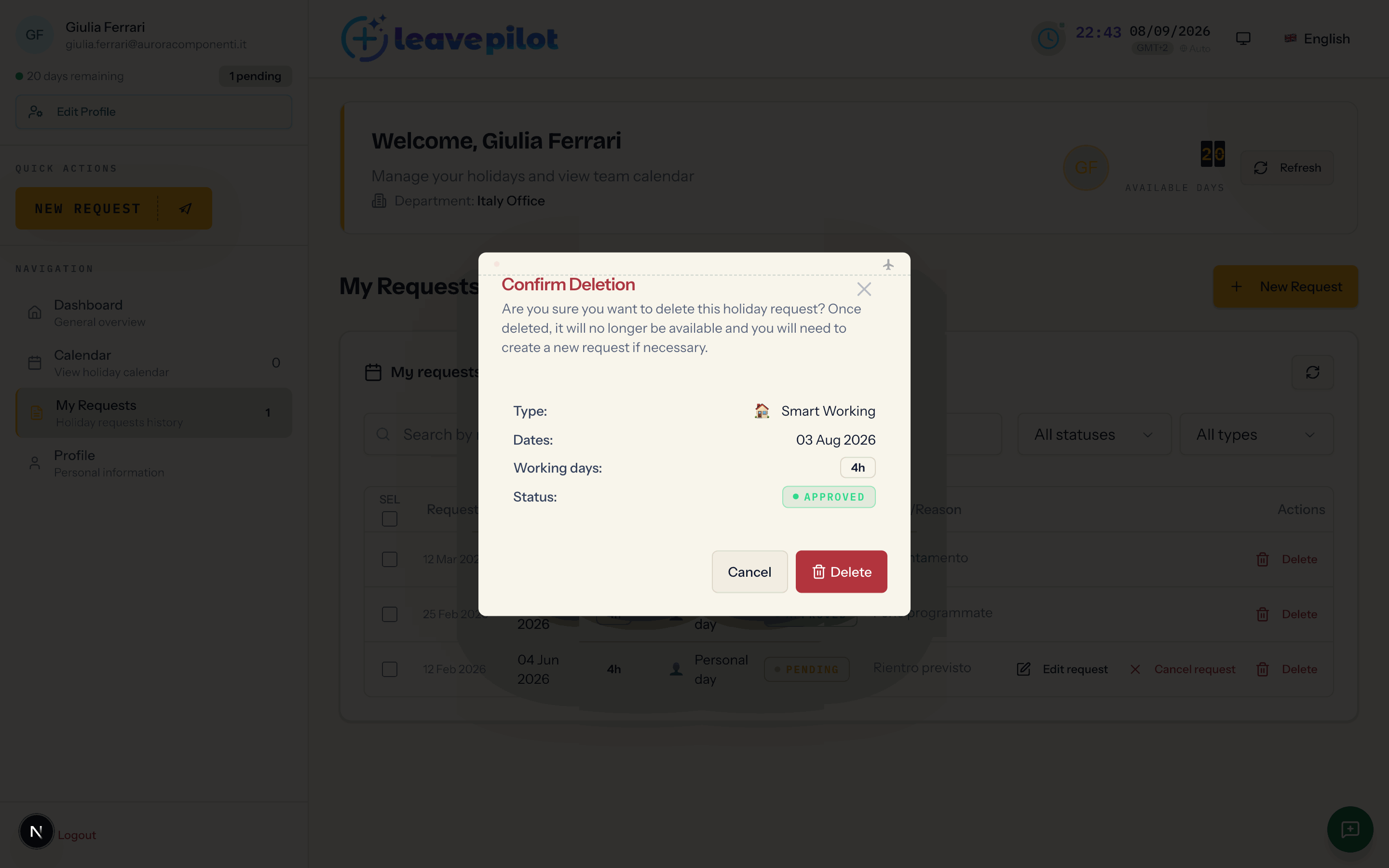
What happens:
- the request disappears from the history and from the calendar;
- if it was approved, the days go back into your balance;
- any attached medical certificate is deleted;
- no email goes out; the operation stays recorded in the organisation's operations log.
With the SEL checkboxes you can select several rows, or Select all. A bar then appears with Deselect all and three buttons: Approve, Reject and Delete.
For an employee the only button that does anything is Delete: the closing message confirms how many requests were deleted. Approve and Reject appear to you as well, because the bar is the same one used in the administrator area, but the server refuses the operation: at the end you read 0 requests approved successfully, and nothing changes. The same holds if you are a department manager, because nobody can decide on their own requests.
Downloading a medical certificate again
On sick leave requests where you attached a certificate you get the Scarica button (Scarica Certificato on a phone), both left in Italian in the interface, meaning "download" and "download certificate": it returns the file you uploaded, available for 12 months.
Changing a pending request
If you want different dates or a different type, delete the request and create a new one with New Request: it is the only way. While a request is pending, its days are already subtracted from the available figure; deleting it gives them back straight away.
Statuses and who decides
| Status | How you get there |
|---|---|
| Pending | the initial status when the organisation approves by hand |
| Approved | decided by an administrator or by the manager of your department, or automatic |
| Rejected | decided by an administrator or by the manager, with or without a reason; an approved request can also be rejected later, and in that case the days become available again |
Who decides, and when a request is created already approved, depends on the organisation's approval settings. You get an email for every decision: see Emails and notifications.