Brand: company name and logos
The company name shown everywhere, the header logo and the sign-in page logo, as an image or as text.
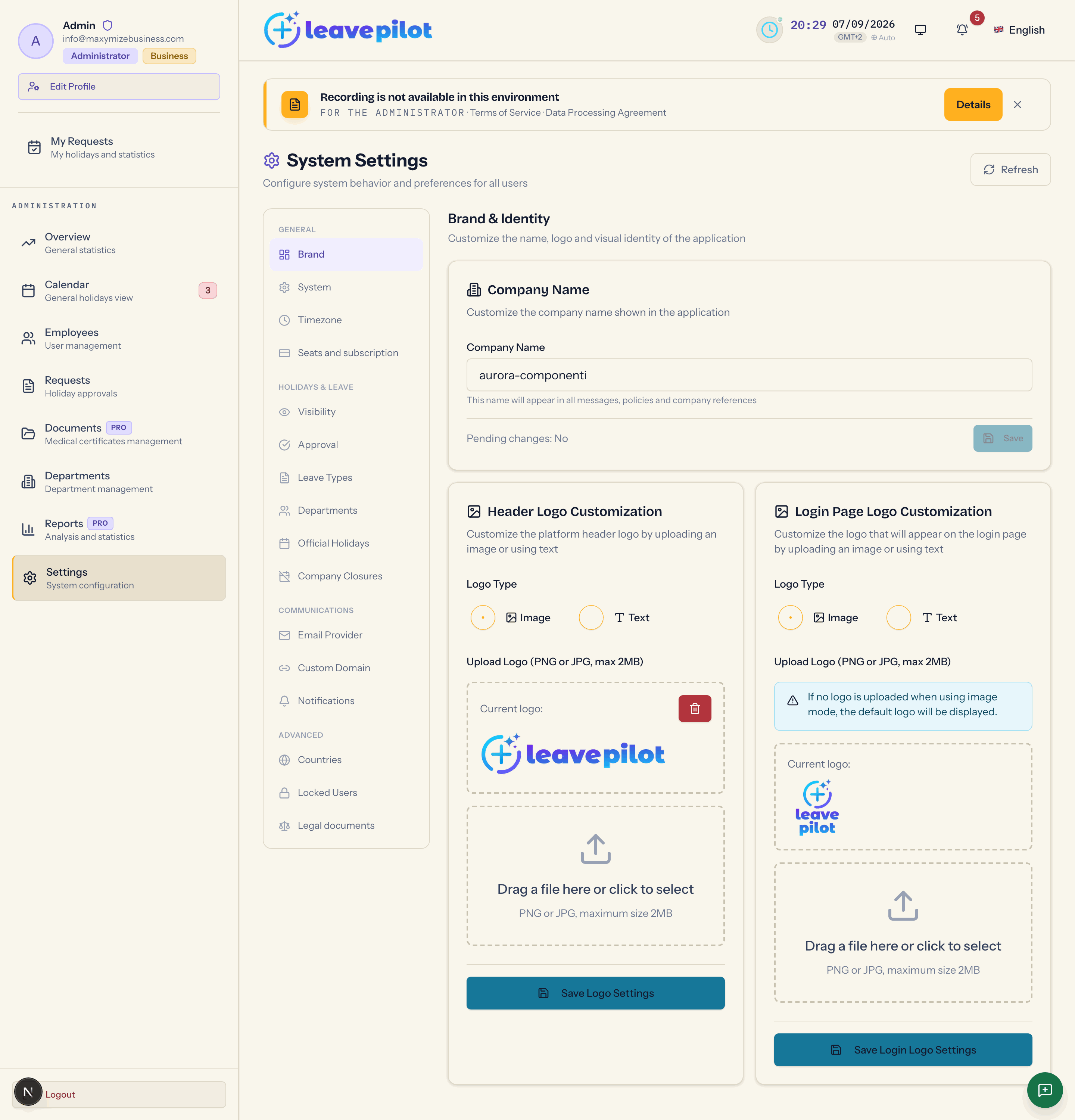
The Brand section (Brand & Identity, "Customize the name, logo and visual identity of the application") has three boxes: the name, the header logo and the sign-in page logo.
Company Name
The Company Name field (up to 50 characters) and the Save button. The Pending changes line tells you whether anything is waiting to be saved.
The name appears in the sign-in page subtitle ({name} Holiday Management System), in the header of every email, in the team holiday summary, in reports and in exports. It is visible to people who have not signed in yet.
Default: the field shows Leave Pilot; until you save a name, the sign-in page and the emails use LeavePilot.
Header Logo Customization
The logo shown at the top left, in the dashboard header.
Logo Type: Image or Text.
Image
- Drag a file onto the Drag a file here or click to select area, or tap it. PNG or JPG, maximum size 2MB.
- The upload applies immediately: you get Logo uploaded and applied: it is already in the header. There is no need to press Save.
- The Current logo box shows the preview. If you have never uploaded a logo, a notice reminds you that the default one is being shown.
- The bin icon (Delete custom logo) asks for confirmation and restores the default LeavePilot logo: Logo removed: the default LeavePilot logo is back.
Messages: Unsupported file format. Only PNG and JPG are accepted., File too large. Maximum size is 2MB.
Text
- Type the Brand Text (up to 100 characters): it appears as large bold text in the header. The Preview box shows it.
- Press Save Logo Settings. With the text empty: Brand text is required when using text mode.
If you switch from one type to the other and save, the other one is forgotten: saving in Text mode wipes the reference to the image, and to go back to the logo you have to upload it again. The same happens the other way round with the text.
Login Page Logo Customization
Identical to the previous box, but for the sign-in page, which is public: the logo is there before anyone signs in. Button Save Login Logo Settings; confirmation Logo uploaded and applied: it is already on the sign-in page.
Advice on the files
- For the header use a horizontal image on a transparent background (PNG): it is shown 64 pixels high, and the width adapts.
- For the sign-in page a squarer shape works fine too.
- If the logo does not change straight away in the header, reload the page: the previous image can sit in the browser cache for a moment.