Employee management
Inviting people, approving or rejecting registrations, changing department, country, role and holiday days, deactivating, reactivating and deleting an account.
The Employees section (#employees) is the list of everyone in the organisation, with the actions you use to manage them.
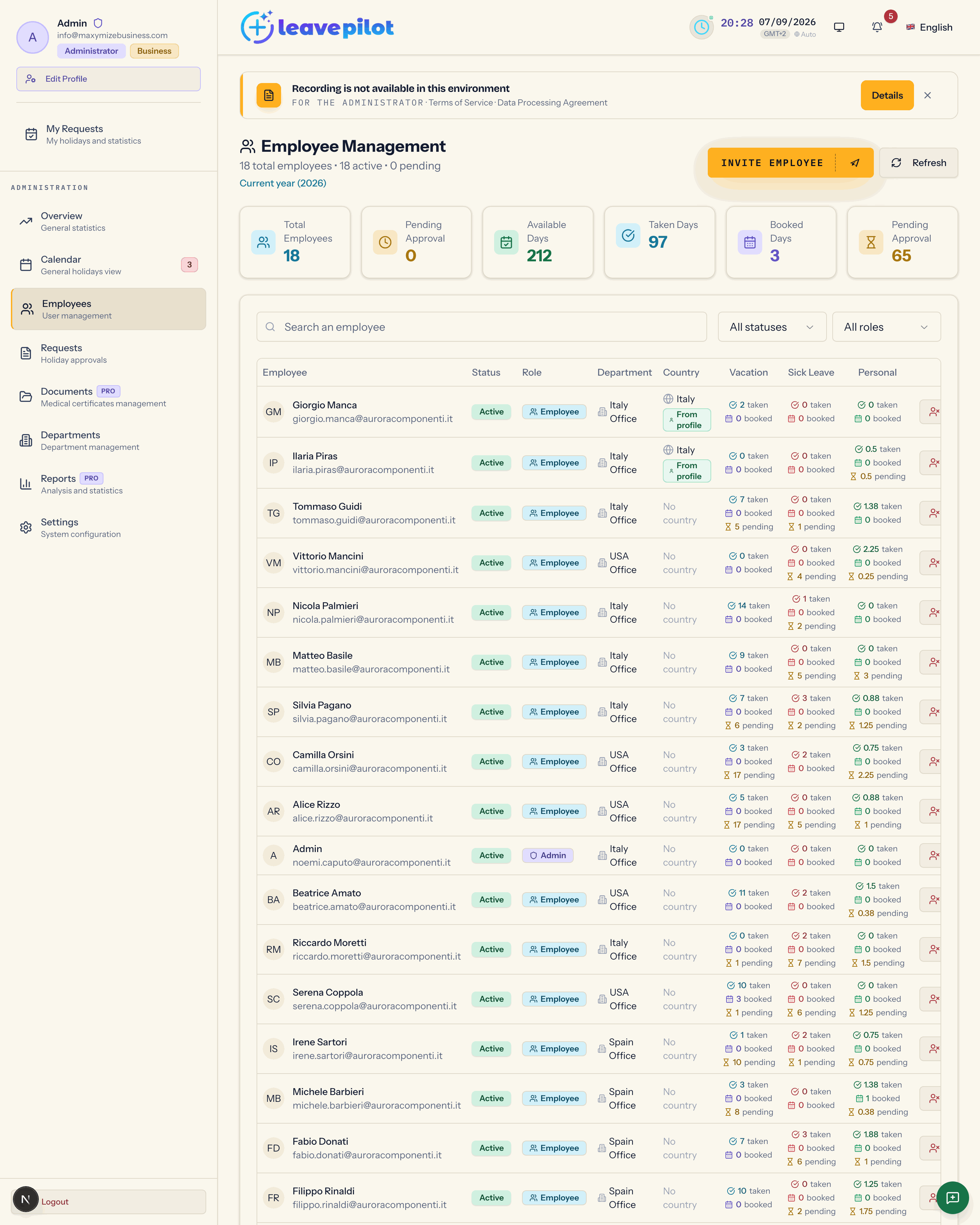
At the top
- The heading Employee Management with {n} total employees • {n} active • {n} pending and the line Current year ({year}): the holiday counts refer to this year.
- The Invite Employee and Refresh buttons.
- Six cards: Total Employees, Pending Approval (people), Available Days, Taken Days, Booked Days and Pending Approval again (days from pending requests), added up across everyone.
The list
- Search an employee looks in name, email and department.
- Status filter: All statuses, Active, Pending, Inactive.
- Role filter: All roles, Employees, Administrators.
- Twenty people per page.
The columns on a computer:
| Column | Content |
|---|---|
| Employee | photo or initials, name, email |
| Status | Active, Pending (registration awaiting approval), Inactive; someone who was invited but has never signed in shows the status Unknown |
| Role | Admin or Employee |
| Department | the department, or No department |
| Country | the country used for public holidays, with From profile (chosen by the person) or From department (inherited) |
| Vacation, Sick Leave, Personal | for each type: {n} taken, {n} booked and, when there are any, {n} pending for the year |
| Actions | the buttons described below |
On a phone each person is a card with name, email, status, role, department and the buttons; the counts are in the details.
Inviting someone
Invite Employee opens Invite New Employee:
- Email and Full Name, both required.
- Role: Employee (Employees can only manage their own holidays) or Administrator (Administrators have complete system access).
- Department (optional).
- Preferred Language: Italiano, English, Español. It is the language of the invitation email and of the onboarding.
- Annual Holiday Days, from 0 to 365, prefilled with System default: {n} days.
- If the organisation is on a paid subscription, a box shows the effect on seats in advance: Seats go from {n} to {n}. plus one of This person does not change what you pay., Your next invoice will be {amount} higher. or {amount} will be charged now for the remaining months. On the free plan or during the trial the box does not appear.
Send Invitation creates the account with the invited status, generates a temporary password and sends the email You have been invited to {company} on LeavePilot, which carries the password and the Login Now button. The Invitation Sent screen shows the same password with Copy password, in case you want to read it out: you do not have to, the person already has it.
The temporary password never expires and the invitation link stays valid until the person signs in: an invitation used weeks later still works. To cancel an invitation nobody ever used, delete the person from the Employees tab: the seat is freed straight away.
At first sign-in the person changes the password and completes the profile. If the Registration switch in Settings › System is on and the section has been saved at least once, from that moment the account is Active; otherwise, in the current version, completing the profile leaves the person Pending and you have to approve them from this same tab. An invitation takes up a seat on the plan immediately.
Messages you may see: Un utente con email {email} esiste già nel sistema (Italian for "a user with email {email} already exists in the system", left untranslated in the interface); Seats are full, with The {plan} plan includes {n} seats, and {n} are currently in use. and an explanation of what takes up a seat (see Seats and subscription).
Approving or rejecting a registration
People who registered on their own show the status Pending and two buttons, a green one and a red one whose tooltips read Approva dipendente and Rifiuta dipendente (Italian for "approve employee" and "reject employee", left untranslated in the interface). Both act immediately.
- Approving makes the account Active and sends the email Account approved · Welcome to {company} on LeavePilot!, carrying the holiday allowance that applies to that person.
- Rejecting moves the account to Inactive; no email is sent.
New registrations are announced to you by the email New Employee to Approve - {name} (or New Employee Registered - {name}) and by the New Registrations card in the Overview.
Deactivating and reactivating
- On an Active person the red button opens Confirm Status Change: New status: Rejected. Once you confirm, the account becomes Inactive: the person can no longer sign in, their data (requests, balances, certificates) stays, and their seat is freed.
- On an Inactive person the green button opens the same dialog with New status: Active. Reactivating takes up a seat again; in the current version the panel does not check the seat limit when reactivating, so the account comes back to life even when the seats are full.
Editing a person
The pencil (tooltip Modifica dipendente, Italian for "edit employee", left untranslated) opens the edit dialog with:
- Department;
- Country (for leave calculation);
- Role: Employee or Administrator;
- Holiday days, with the line {n}gg • Used: {n} • Remaining: {n} (
ggis the Italian abbreviation for days and is not translated) and a field from 0 to 365; - Reason for changes (optional).
The Riepilogo modifiche box (Italian for "summary of changes", left untranslated) lists only what is changing; Save Changes becomes active only when there is something to save.
If you move a person into a department whose country differs from theirs, the Country Conflict dialog appears ("The employee has a different country than the department. What do you want to do?") with Yes, overwrite and No, keep.
What each change does:
- Holiday days: sets a personal exception on the holiday allowance, which beats the department and country overrides and the general value. It applies to vacation only. The change is recorded with the old value and the new one.
- Role: takes effect immediately. In the current version nothing stops you from removing the role from yourself: only do it if another active administrator exists. The only account that cannot be demoted is the platform administrator's.
- Department and Country: change the department and the country used for public holidays.
The details
The three dots open Employee Details: status, role, department, Registered on, Holiday days per year and the Holiday status with available, already taken, booked, pending.
Deleting a person
The bin (Delete employee) opens Confirm Employee Deletion, in two steps.
- A warning lists what will be deleted for good: all personal data, all holiday requests in every state, all uploaded medical certificates, all other associated information. Press Continue.
- Type DELETE in the confirmation field and press Delete Permanently.
You cannot delete yourself or the last remaining administrator: the buttons are disabled with the reason. Deleting also removes the encrypted certificate files and the photo; the audit log entries stay. To make a person disappear without erasing their history, deactivate them instead of deleting them.
Unlocking a locked account
Accounts locked after too many sign-in attempts are not handled here but in Settings › Locked Users: see Locked users.
What you cannot do from here
- The default holiday allowance offered in invitations and given to anyone who registers on their own is an organisation-wide value (20 days unless you set otherwise); the allowances per type, country and department are set in Leave types and allowances.
- There is no administrator password reset: the person uses Forgot password? on the sign-in page.