The control panel
How the administrator area is put together: menu, tabs, header, overview with the statistics, recent activities and the notification bell.
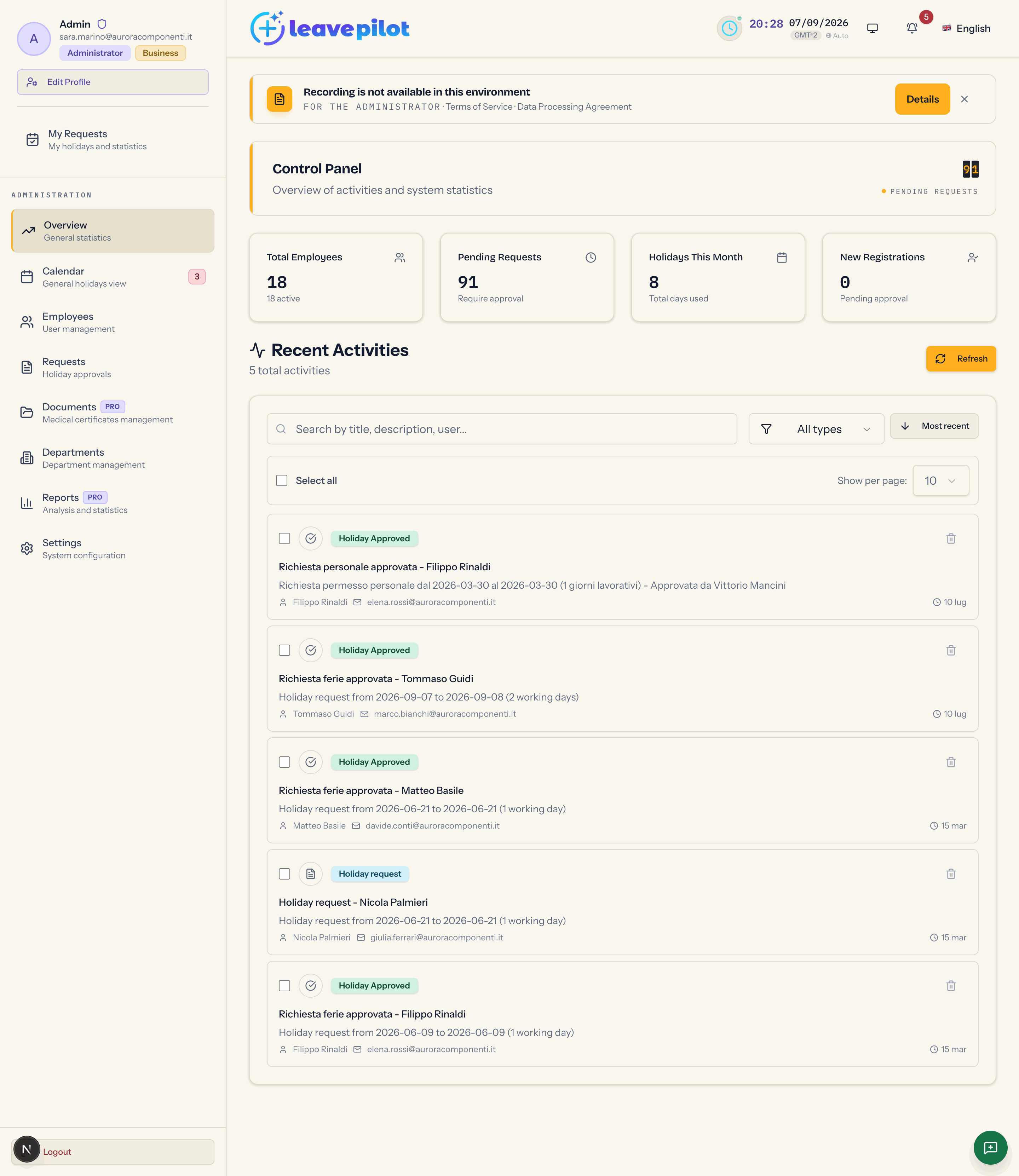
Administrators land on the Control Panel, at /admin-dashboard. Every section lives on this page and opens from the side menu; the open section appears in the address after the hash (for example #employees, #requests, #settings), so you can bookmark or share a direct link.
The side menu
On a computer it is the left column; on a phone it opens from the button at the top left.
At the top: your photo or initials, your name, your email, the Administrator label and the one for the plan in use (Starter, Pro, Business, Enterprise), the Edit Profile button and your personal entry My Requests (your own holidays and statistics).
Under the Administration heading:
| Item | Description | Number beside it |
|---|---|---|
| Overview | General statistics | employees waiting for approval |
| Calendar | General holidays view | people on holiday today |
| Employees | User management | employees waiting for approval |
| Requests | Holiday approvals | |
| Documents | Medical certificates management | |
| Departments | Department management | |
| Reports | Analysis and statistics | |
| Settings | System configuration |
Entries that need a higher plan than yours are greyed out with a padlock and an Upgrade pill: clicking opens the plans dialog. Unlocked premium entries show the name of the plan that includes them.
At the bottom, Logout.
The header
The organisation logo (or its name), a clock with the timezone, the light and dark theme switch, the notification bell and the language selector. Changing language keeps the open section, and translates the address as well.
Notices at the top of the page
- Acceptance of the legal documents (or Legal documents updated): it stays until the organisation has accepted the version in force of the Terms of Service and of the Data Processing Agreement. Review and accept opens the acceptance dialog; the X (Later) hides it for this browser session. See Legal documents.
- A red box with Hide reports a data loading error.
Overview
The statistics
Four cards, each one clickable to open the matching section:
| Card | What it shows | Opens |
|---|---|---|
| Total Employees | every account in the organisation, with the number of active ones | Employees |
| Pending Requests | pending requests starting in the current year | Requests |
| Holidays This Month | approved requests starting in the current month | Calendar |
| New Registrations | registered people waiting for approval | Employees |
To the right of the heading, on a computer, the split-flap Pending Requests counter, amber when there is something to decide.
Recent Activities
The list of the latest things that happened in the organisation, each with a label for its type:
- Holiday request: a request still pending (Holiday request - {name}, or sick leave, or personal);
- Holiday Approved and Holiday Rejected: a decision taken, with who took it;
- Employee Registration: a person created in the last 30 days, whether they registered or were invited.
The tools available: the Search by title, description, user... box, the Tipo attività filter (Italian for "activity type", left untranslated; its options are All types, then Richieste Ferie, Registrazioni, Ferie Approvate and Ferie Rifiutate, which are untranslated too), the Most recent / Più vecchie sort ("oldest first", also left in Italian), multiple selection, Show per page: and the Refresh button.
The list receives at most five activities at a time, and the ones you hide are not replaced.
The bin on an entry hides it straight away; Delete after a selection opens Confirm Deletion first. In both cases the entries are only hidden in this browser: the request or the registration stays where it is, and the entries come back on another device. The dialog talks about data that "cannot be recovered", but that is not what happens. Requests are handled in the Requests section, people in the Employees section.
The bell
The bell in the header shows the same recent activities, with the number of new ones since you last opened it (the count is per browser, and stops at 99+). Open it and you see the last five, with how long ago they happened; the bin next to an entry hides it straight away, with no confirmation. When there is nothing, it reads Nessuna notifica (Italian for "no notifications", left untranslated in the interface).
Refreshing the data
The panel loads the data when it opens and keeps it for a few minutes; when you switch to the Employees section the employees are reloaded, because holiday allowances may have changed. Every section also has its own Refresh button. The session lasts one hour: when it runs out you go back to the sign-in page with the notice Your session expired after a period of inactivity.
Reporting a problem
On every screen of the panel, at the bottom right, there is the round green feedback button (Report on hover): it opens the panel where you write to the LeavePilot team. See Contacting support.
Your profile
Edit Profile opens the same dialog employees get: photo, country, language, name, email, phone, job title, date of birth, department and password change. The role can only be changed from the Employees section. See Your profile.
Where to go next
Setting up the organisation is covered in Settings overview; the messages you will receive by email are listed in Emails the administrator receives.