Request management
Every absence request in the organisation: filters, approval and rejection with a message, changing a decision, bulk actions, deletion, attached medical certificates.
The Requests section (#requests) shows every request from everyone, in every state. It is the same tool department managers use for their own team, with deletion on top.
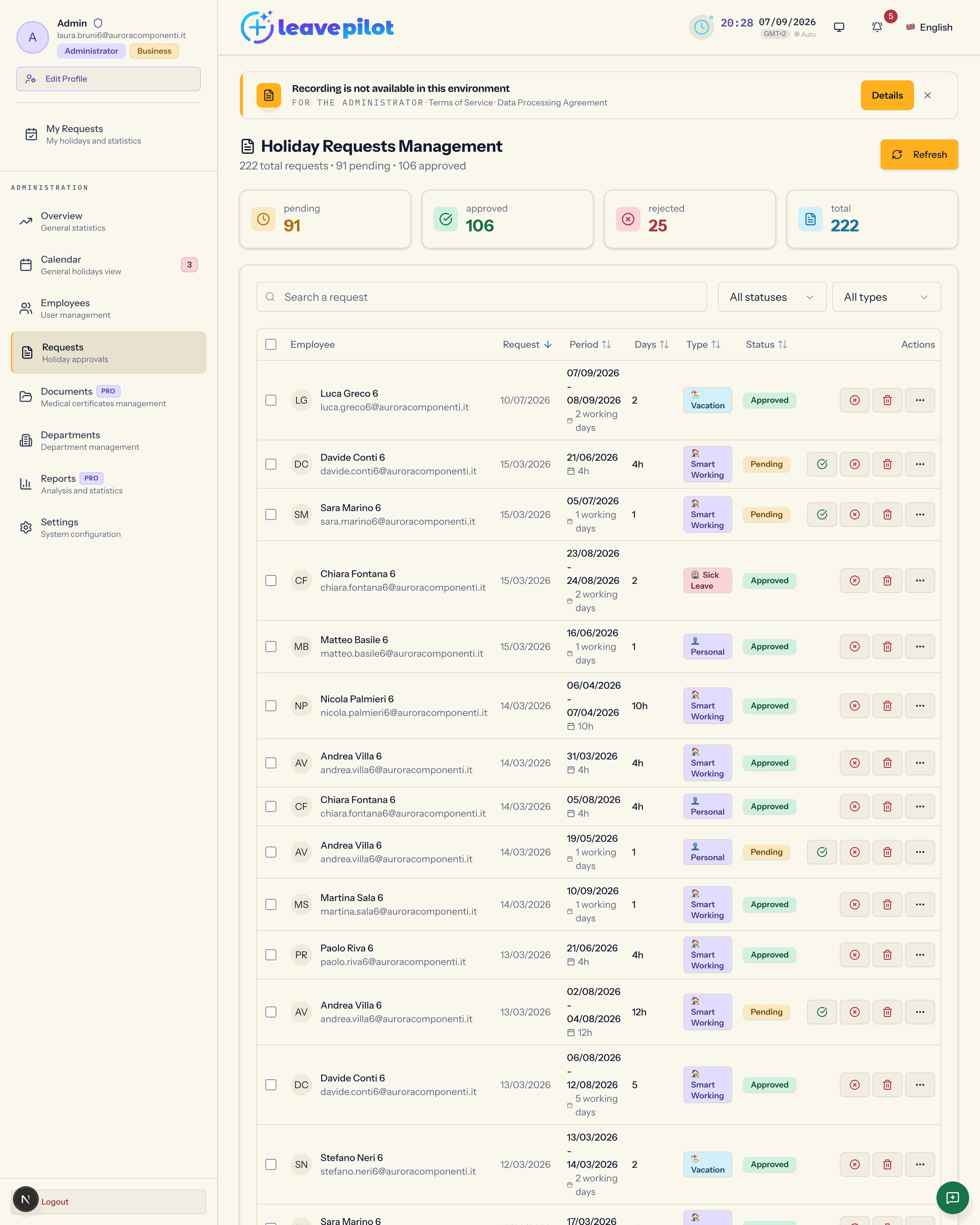
At the top
Holiday Requests Management, with {n} total requests • {n} pending • {n} approved, the Refresh button and four counters: pending, approved, rejected, total.
Searching and filtering
- Search a request: by name, email or department.
- Status: All statuses, pending, approved, rejected. Cancelled requests have no entry of their own: you only see them under All statuses.
- Type: All types, Vacation, Sick Leave, Personal, Smart Working.
- The Request, Period, Days, Type and Status headers sort the list (by default the most recently submitted requests come first).
The list has no pages and no year filter: it shows in one go every request that passes the filters, including those from past years. With many rows it pays to narrow things down first with Status, Type or the search; for an analysis by period use the Reports section.
The table
| Column | Content |
|---|---|
| checkbox | selection for the bulk actions |
| Employee | initials, name, email, department |
| Request | when it was submitted |
| Period | the dates and {n} working days, or {n}h for hourly requests |
| Days | the number, or the hours |
| Type | Vacation, Sick Leave, Personal, Smart Working |
| Status | Pending, Approved, Rejected |
| Actions | the buttons described below |
On a phone each request is a card that opens into the details; the actions are available on a computer.
Approving
On the row of a Pending request press the green icon (its tooltip reads Approva richiesta, Italian for "approve request", left untranslated in the interface). In the Approve Holiday Request dialog you can add a Message (optional) for the person; press Approve Request.
The request becomes Approved, the days (or the hours) are recorded against the person's balance and the email {type} Request Approved goes out, carrying your message if you wrote one.
Rejecting
The red icon (tooltip Rifiuta richiesta, Italian for "reject request", also untranslated) opens Reject Holiday Request with the Reason (optional) field. Press Reject Request. The person receives {type} Request Rejected with the reason, or Not specified.
Changing a decision
A request that has already been decided can be changed too: on an Approved one the red icon stays (tooltip Cambia stato ad rifiutata, Italian for "change status to rejected"), on a Rejected one the green icon does. Confirm Request Status Change opens with the warning You are about to modify the status of an already processed request., a summary of Employee, Requested period:, Current status: and Nuovo stato: (Italian for "new status", left untranslated), and a note on what happens to the days:
- rejecting an approved request gives the days back to the person;
- approving a rejected request takes the days off the balance.
You confirm with Confirm Approval or Confirm Rejection. A rejection from this dialog has no reason field: the person sees Status changed by admin: reason not provided. Either way the email for the new decision goes out.
Several requests at once
Selecting one or more rows brings up the bar {n} richieste selezionate (1 richiesta selezionata in the singular) with Approva Selezionate, Rifiuta Selezionate, Elimina Selezionate and Deseleziona Tutto: the whole bar is left in Italian in the interface, and means "n requests selected", "approve selected", "reject selected", "delete selected" and "clear selection". The actions run immediately, with no confirmation dialog, all at once: every person gets their own email. A bulk rejection records the reason No reason provided.
Deleting a request
The bin opens Confirm Deletion with the summary (Employee, Period, Days, Type, Status) and the Delete button. The request disappears, the days go back to the balance if it was approved, any attached medical certificates are erased. No email is sent; the operation stays in the audit log.
The details and the medical certificate
The three dots open Holiday Request Details: name, email, department, Period, Working days, Type, Status, Request date, Notes.
For Sick Leave requests there is the Medical Certificate section:
- File uploaded, with the file name, Certificate present and the Download button, if the person attached the certificate when submitting;
- Impegno a inviare via email (Italian for "undertaking to send it by email", left untranslated), if they chose to provide it to management within 3 working days;
- Certificate not specified in every other case.
Every uploaded certificate is also collected in the Documents section.
The rules that apply to everyone
- Requests start out pending or already approved depending on the organisation's approval mode. If you chose Admin and department manager, managers decide for their own department too and receive the new request emails.
- Your own requests are handled in My requests, but they also show up here, and you can approve them from here.
- There is no automatic overlap warning between different people: use the Calendar to see who is away in the same period before you approve.
- You receive the email New {type} Request from {name} for every request that starts out pending; the button in the email takes you straight to this section.