LeavePilot on your phone
How to use the platform from a phone, how to add it to the home screen, and what to expect with no connection.
LeavePilot has no app to download from the stores: you use it from your phone's browser, with an interface built for a small screen, and you can add it to the home screen like an app.
What changes on a phone
- The side menu opens from the button at the top left and closes when you tap outside it.
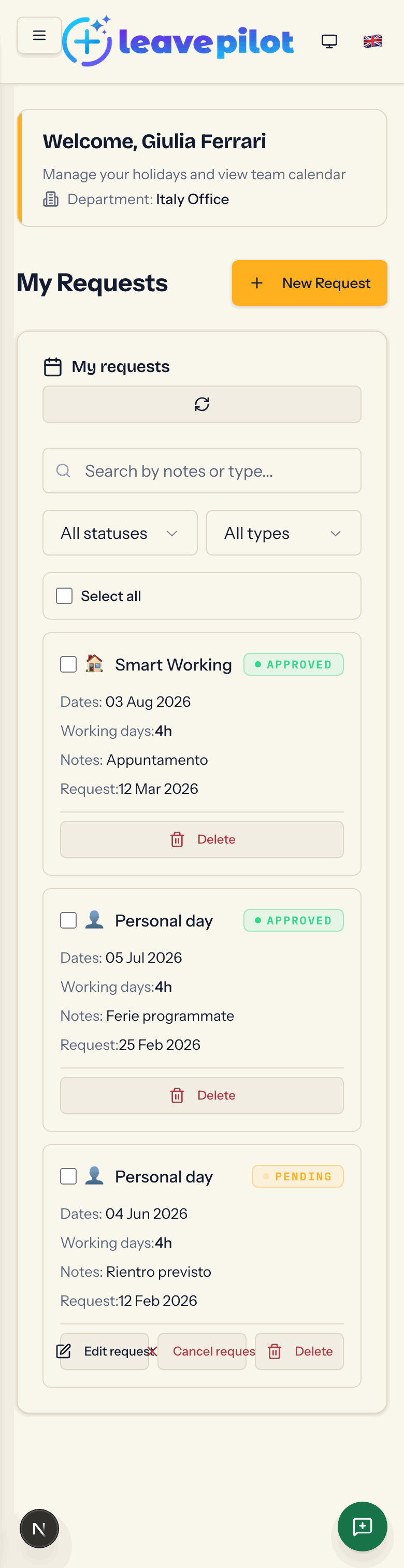
- Tables (my requests, employees, requests, departments, documents) become cards, one per row, with the same buttons.
- The calendar starts on the Timeline view, where your finger scrolls through the days of the month and the arrows change month; in the Month, Week and List views, scrolling changes month. See The calendar.
- The request form is the same, in four steps.
- The Report button stays at the bottom right.

Adding LeavePilot to the home screen
On Android, with Chrome or Edge, after a couple of seconds on the dashboard a banner appears: Installa LeavePilot ("Aggiungi l'app alla tua schermata home per un accesso rapido alle tue ferie"), which is Italian for "Install LeavePilot, add the app to your home screen for quick access to your holidays"; the banner is not translated. Press Installa ("install") and confirm: the icon appears among your apps and the platform opens full screen. With Chiudi ("close") the banner does not come back.
On iPhone and iPad the banner does not appear, but you can do the same by hand: in Safari open the share menu and choose Add to Home Screen.
When the banner is missing and you want it back, you can use the browser menu: in Chrome for Android, Install app or Add to Home screen.
Without a connection
The installed app is a full-screen shortcut, not an application that works without a network. With no connection the data already on screen stays visible, but every action (opening a tab, sending a request, signing in) reports a connection error, and the page Connessione Assente may appear, with the Riprova and Torna alla Home buttons: it is the offline page, still untranslated, and it means "no connection", "retry" and "back to home". Once the network is back, just try again.
Tips
- The language and theme switchers are in the top bar, next to the logo.
- For a sick leave request from your phone, photograph the certificate as JPG or save it as PDF: those are the accepted formats, along with PNG, up to 4 MB, even though the upload area lists others.
- If the session expires (after an hour), the app goes back to the sign-in page: that is normal, sign in again.