Your personal dashboard
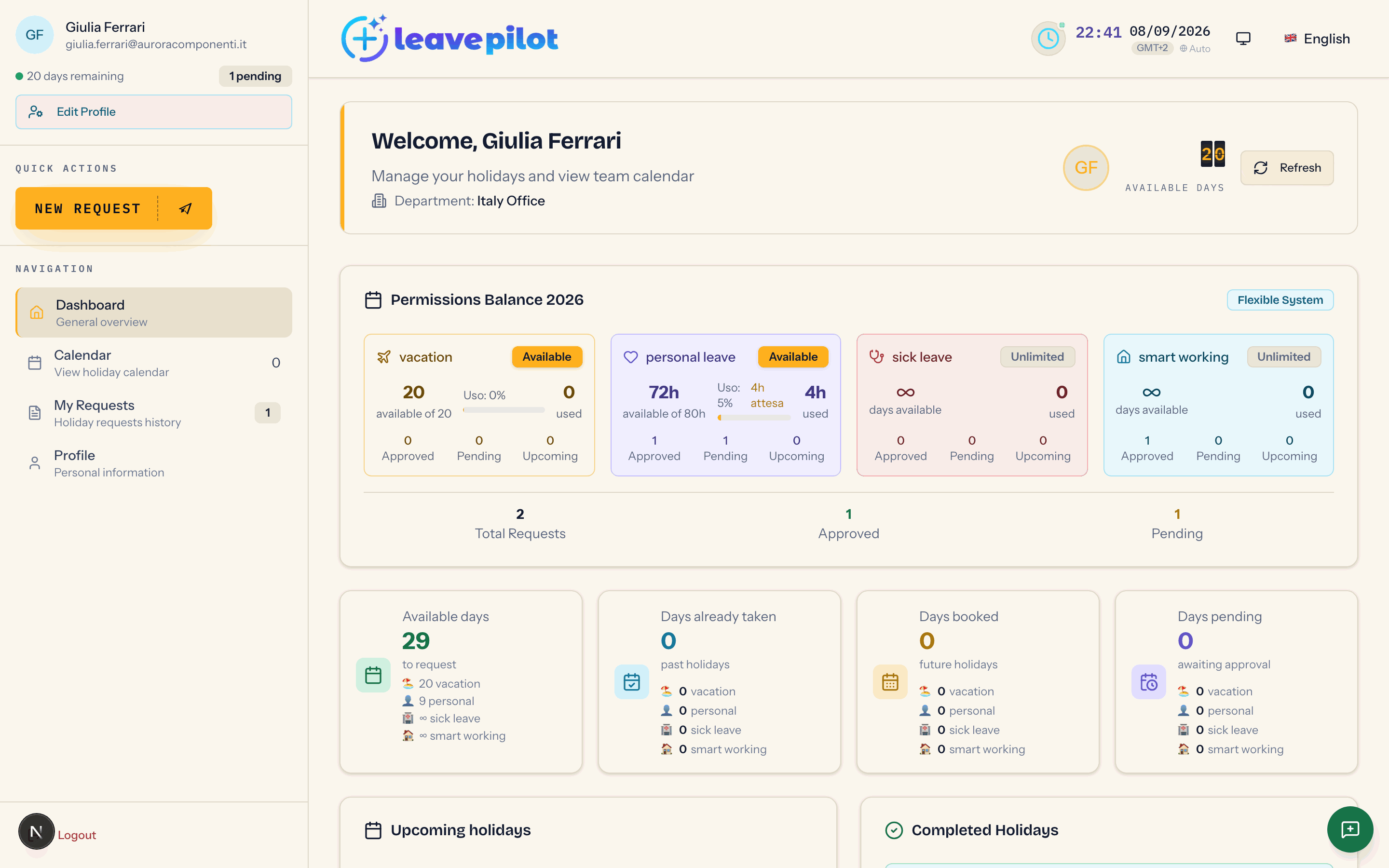
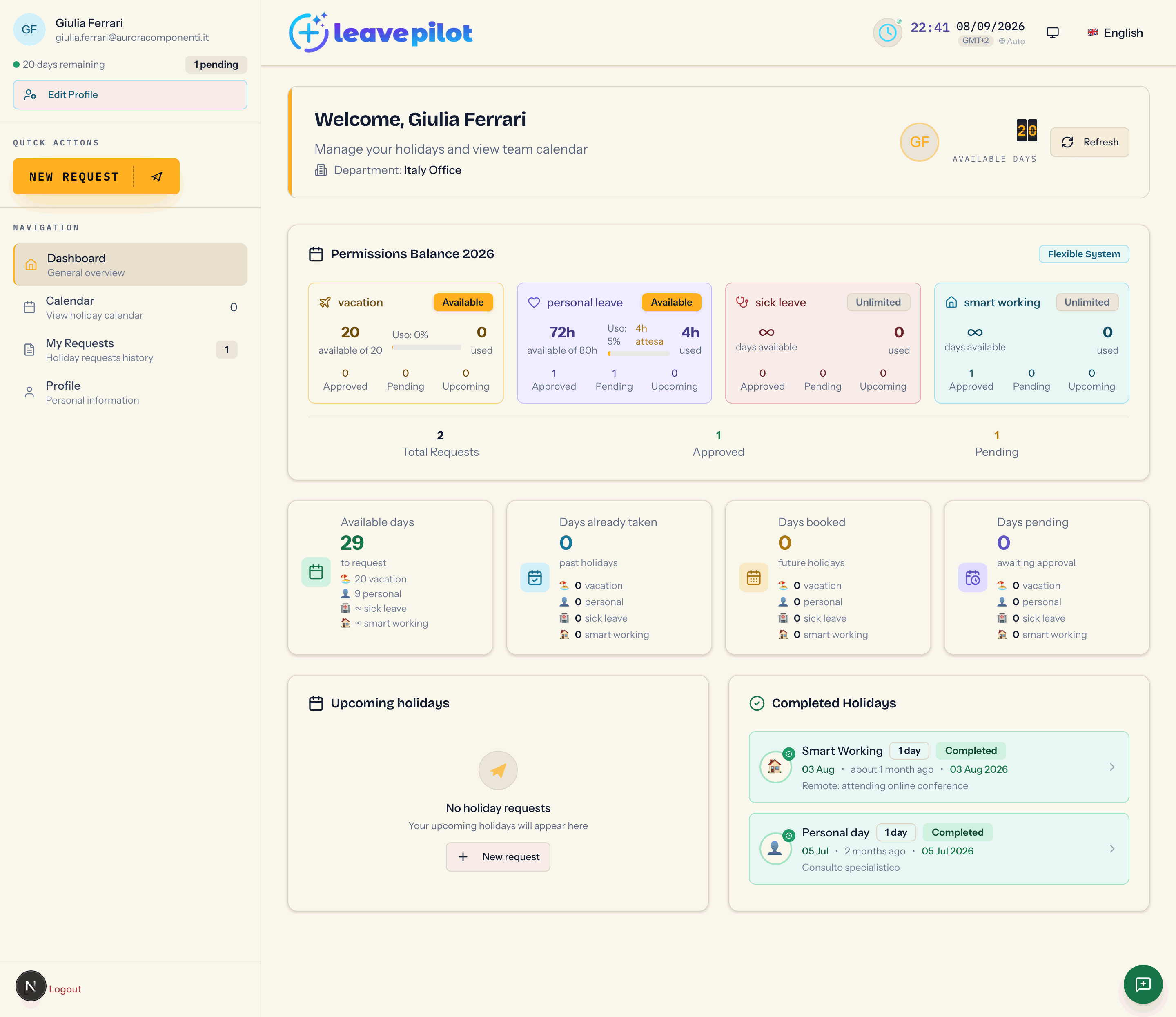
The employee's home page: sidebar, header, balance by leave type, statistics, upcoming holidays and holidays already taken.
After signing in, anyone with the employee role lands in their own area, at /employee-dashboard. The page is titled My area and is organised into tabs: Dashboard, Calendar, My Requests, Team Requests (department managers only) and Profile. The open tab shows in the address, so you can bookmark it.
The sidebar
On a computer the menu is the fixed column on the left; on a phone it opens from the button at the top left, is titled Menu and closes with the X or by tapping outside.
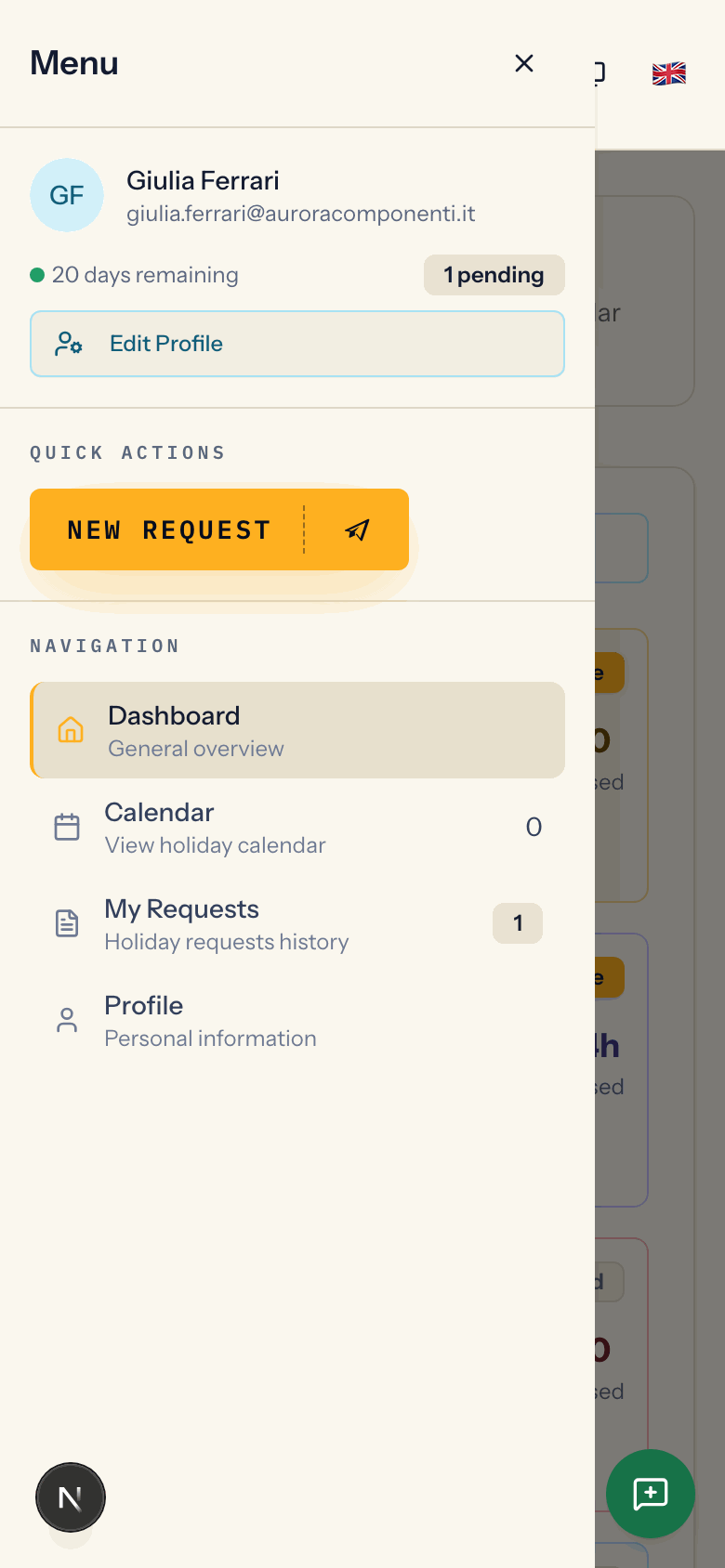
- Your profile at the top: photo or initials, name, email. If you manage one or more departments, the green Manager · {names} pill appears.
- The {n} days remaining line shows the vacation days still available this year, with a green, amber (10 days or fewer) or red (5 or fewer) dot. If you have pending requests you also see {n} pending.
- Edit Profile opens the dialog described in Your profile.
- QUICK ACTIONS: the New Request button takes you to the request form.
- NAVIGATION: Dashboard (General overview), Calendar (View holiday calendar, with the number of approved holidays coming up), My Requests (Holiday requests history, with the number of pending requests), Team Requests (Approve requests from your department, managers only, with the number of team requests still to decide), Profile (Personal information).
- At the bottom, Logout.
The header
The top bar stays put as you scroll.
- On the left, your organisation's logo (or its name, if the administrator chose text; otherwise the LeavePilot logo).
- On a computer, a clock with the date, the timezone and the word Auto when the timezone is the device's own.
- The monitor icon opens the theme choice: Dark, Light or System.
- The language switcher: Italiano, English, Español. The choice sticks to this browser for 30 days, or until you save a language in your profile.
On a phone the Installa LeavePilot banner (Italian for "install LeavePilot", left untranslated in the interface) may appear after a couple of seconds: see LeavePilot on your phone.
The Dashboard tab
The welcome box
Welcome, {name}, with your department if you have one. On a computer, the palette-shaped counter of Available days and the Refresh button, which reloads the data, sit on the right.
Permissions Balance {year}
The box carries the year in its title and the Flexible System label. It holds four cards, one per leave type: vacation (amber), personal (violet), sick leave (red), smart working (blue). For each one:
- a status label: Unlimited if the allowance has no cap, Warning if 2 days or fewer are left, Limited if 5 or fewer, otherwise Available;
- the large number of available days and, underneath, the total allowance (available of 20). personal leave is expressed in hours:
64havailable of 80h; - the usage bar with the percentage and, if there are pending requests, how many days they hold;
- the days used;
- the Approved, Pending and Upcoming counters.
At the bottom, the Total Requests, Approved and Pending summary.
How these numbers are worked out, and why a pending request already eats into what is available, is explained in Leave types and balances.
The four statistics cards
| Card | What it counts |
|---|---|
| Available days | the days you can still request, adding up vacation, personal days and sick leave (when it is not unlimited) |
| Days already taken | approved absences that have already started |
| Days booked | approved absences that have yet to start |
| Days pending | requests not yet decided |
Under each number is the breakdown by type. Smart working is left out of the totals, but shows in the breakdown.
Upcoming holidays
The list of your approved absences that have yet to start, nearest first: type icon, length (1 day, 3 days), date (Tomorrow, the name of the day if it falls this week, otherwise the date with the distance in days), the Approved status and the first few words of the notes. Absences starting tomorrow are highlighted; ones that have already started do not show here.
Five rows show at a time: Show more ({n}) and Show less. If there is nothing: No holiday requests with the New request button.
Completed Holidays
Approved absences that have already ended, most recent first, with the Completed label, the length and how long ago they finished. Five rows at a time here too.
The Holiday Details dialog
Tapping a row in Upcoming holidays or Completed Holidays opens a card with the type, the start and end dates, Working days, Status and Notes. For sick leave there is the Medical Certificate section: Certificate uploaded with the file name and the Download button, or Scheduled to send via email with the 3 working day deadline.
The status pills
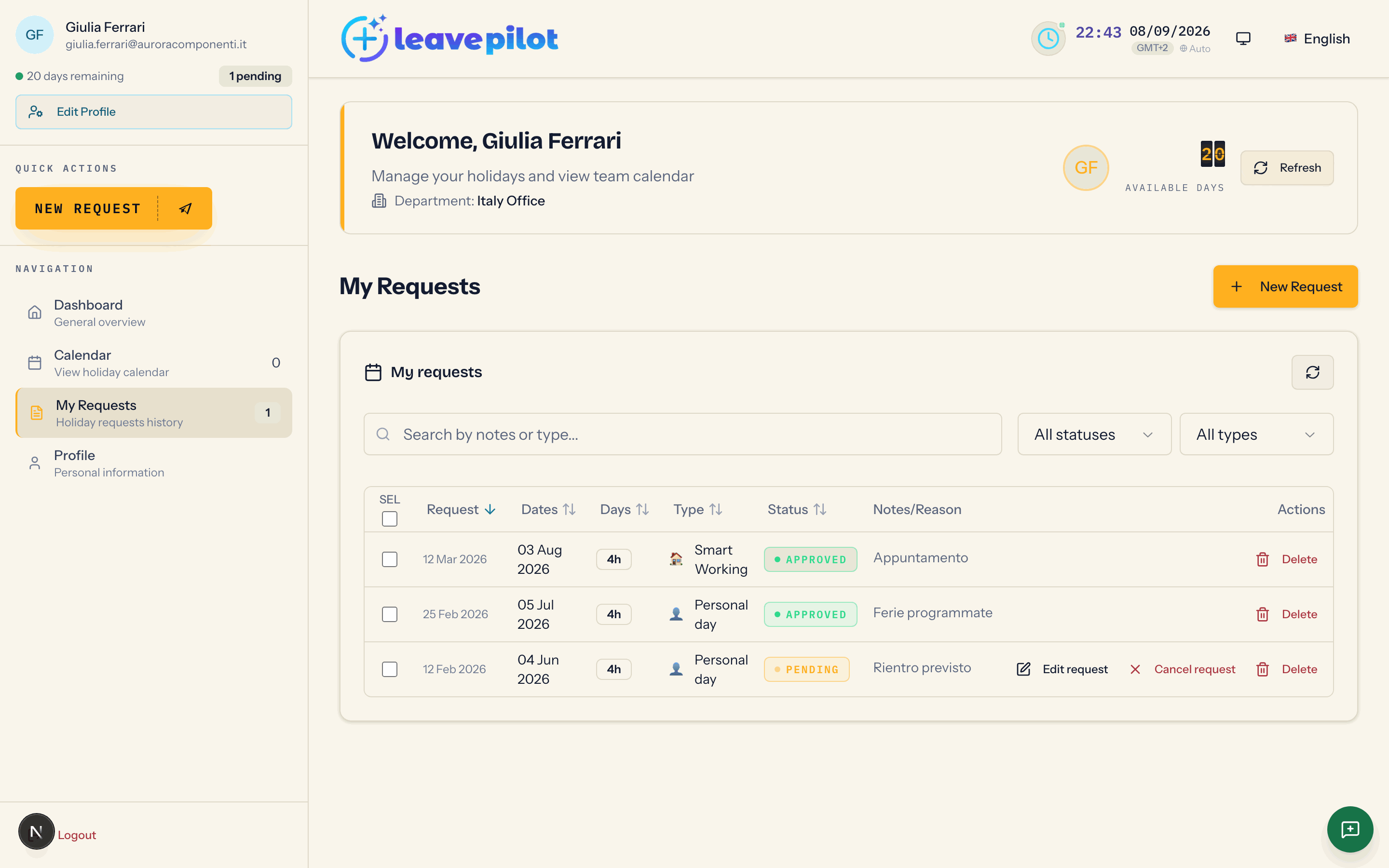
Across the employee area requests carry these statuses:
| Pill | What it means |
|---|---|
| Pending (amber, blinking) | the request is waiting for a decision |
| Approved (green) | the request has been approved and the days are counted |
| Rejected (red) | the request has been rejected; the table shows the reason, if one was given |
If something does not load
A red Error loading data box with the Retry button means a passing network problem. If you see Troppe richieste in corso. Attendere un momento... (Italian for "too many requests in progress, wait a moment", left untranslated in the interface), the page has asked for data too many times in a row: wait a minute before reloading.
At the foot of every page, the footer carries the link to this guide, under Help, the legal documents and the platform version number: it is worth quoting when you write to support.