The calendar
The calendar views, what an employee sees of their colleagues' absences, the legend, company closures and the phone version.
The Calendar tab shows your absences and, if your organisation allows it, your colleagues' too. From here you can also start a new request by picking the days straight off the grid.
What you see, and whose
It depends on the Visibility Mode the administrator chose in Holiday visibility:
| Organisation setting | Views available |
|---|---|
| Everyone sees everything | My holidays, Team holidays, All |
| Department only | My holidays, Team holidays |
| Administrators only | My holidays |
Of your colleagues' absences you only see the approved ones, never pending or rejected requests. Of your own you see everything, in every state. A department manager also sees every request, in every state, from the people in the departments they manage (in the Team holidays view, and only if the department they manage is also their own).
The legend
Above the calendar, the Legend card explains the colours.
- By status: Approved (green), Pending (amber), Rejected (red), Cancelled (grey).
- By type: Vacation (amber), Sick leave (red), Personal day (violet), Smart Working (cyan), Company closure (dashed red).
In the grid views events are coloured by status; you tell the type from the icon before the name (a beach for vacation, a hospital for sick leave, a person for a personal day, a house for smart working).
On a computer
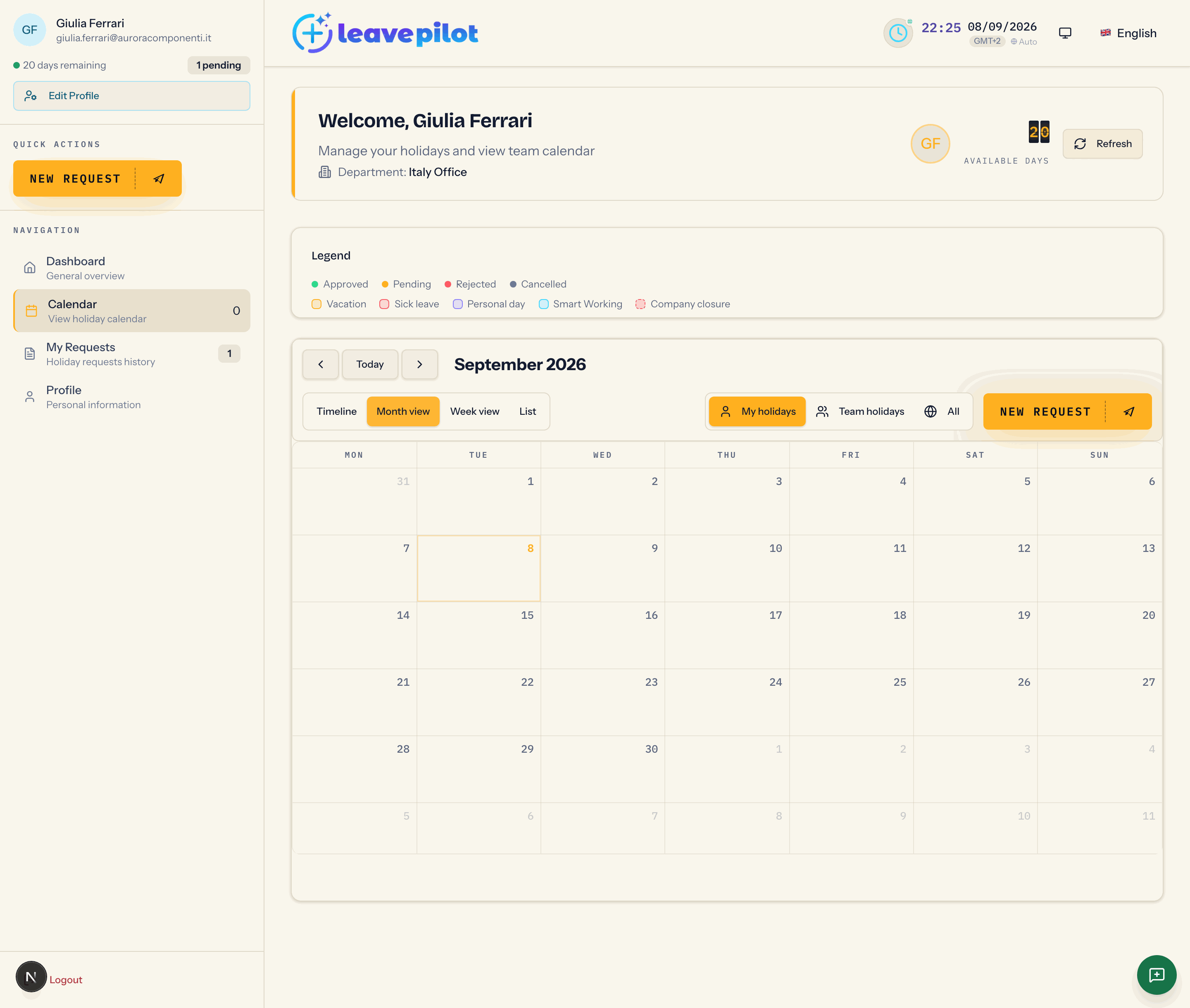
The toolbar has two rows.
- First row: the arrows for changing period, Today, and the name of the month.
- Second row: the view buttons Timeline, Month view, Week view, List; the My holidays / Team holidays / All selector (according to visibility); the New request button.
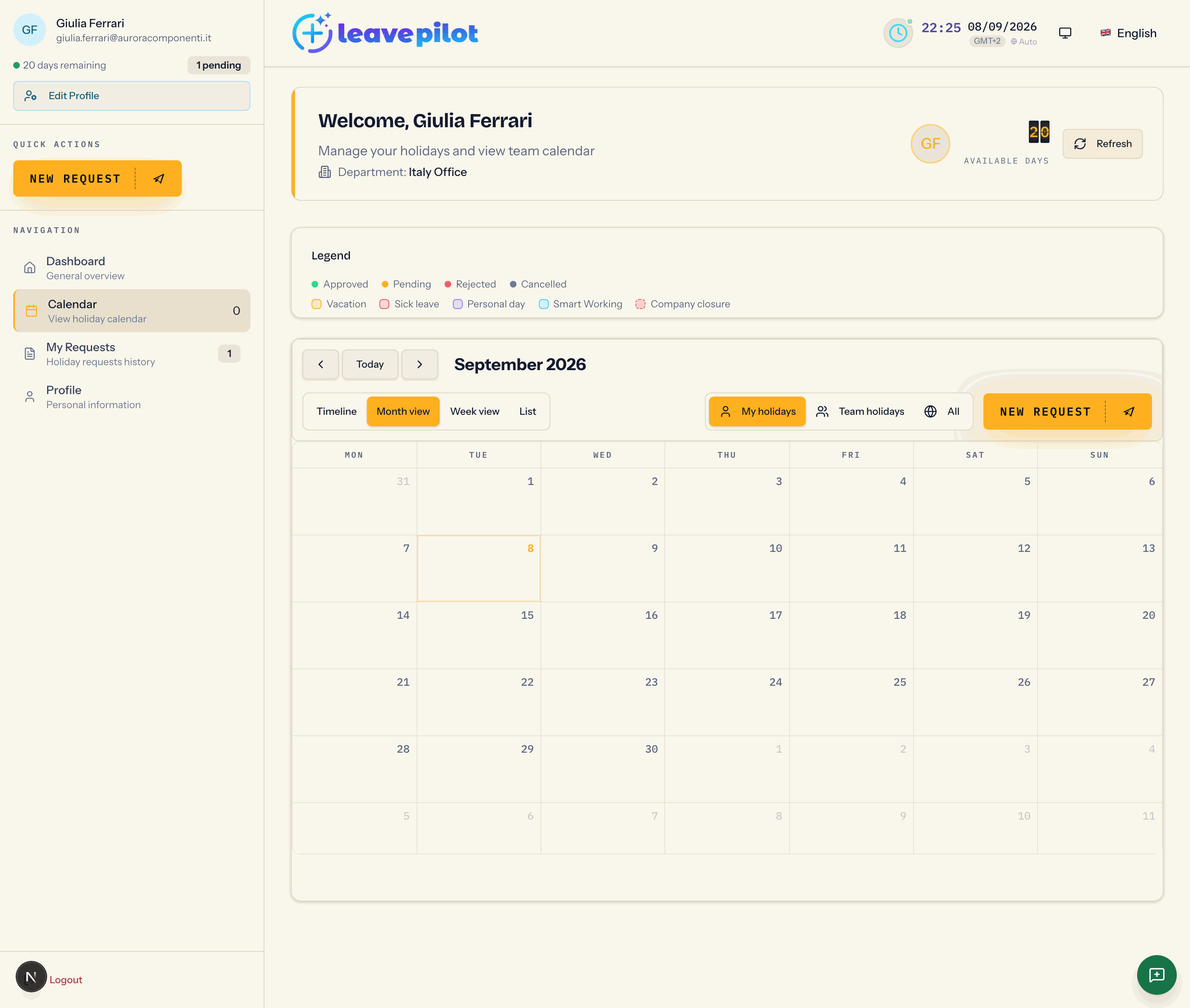
Month view
This is the default view. The week starts on Monday and today is highlighted in amber. Each event carries the type icon and the person's name. Hovering shows name, type, dates, length, status and notes. With more than five events on the same day you get +N: opening it brings up the Ferie del {date} dialog (Italian for "holidays on {date}", left untranslated in the interface) with the full list.
Tapping an event opens Holiday Details: name, type, status, Date and Note (the last two are Italian for "dates" and "notes", left untranslated in the interface). Nothing can be changed from here.
Dragging across one or more empty days opens New Holiday Request with the dates already filled in: it is the same form described in Requesting leave.
Week view
An hourly grid from 7:00 to 20:00. Hourly requests on a single day show at the time given; everything else sits in the All day band.
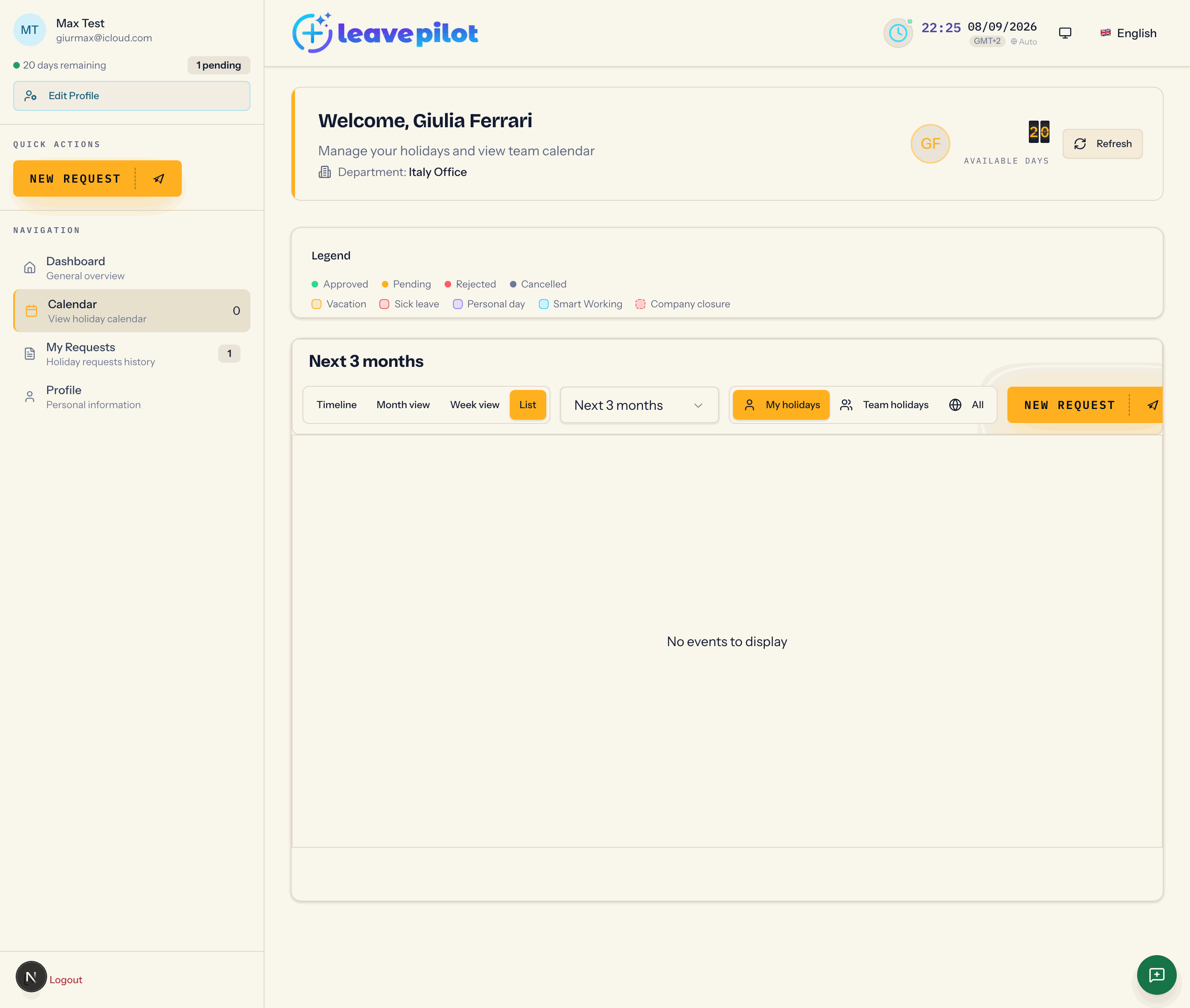
List
A chronological list of the events in the period picked from the Filter by period menu: Year to date, Last 12 months, Last 6 months, Last 3 months, Next 3 months (the default), Next 6 months, Next 12 months. If there is nothing in the period you get No events to display.
Timeline
One row per person and one column per day of the month, scrolled horizontally (dragging with the mouse works too). The TEAM column lists the people with at least one visible absence in the month, plus their number of requests. Bars are coloured by status with a dot for the type; long bars also show the name and, beyond eight days, the status. Weekends are shaded, today is amber, company closures are red.
Clicking a bar opens two stacked dialogs: Holiday Details and, on top of it, a timeline dialog titled Holiday Request Details. Both close without consequences.
On a phone
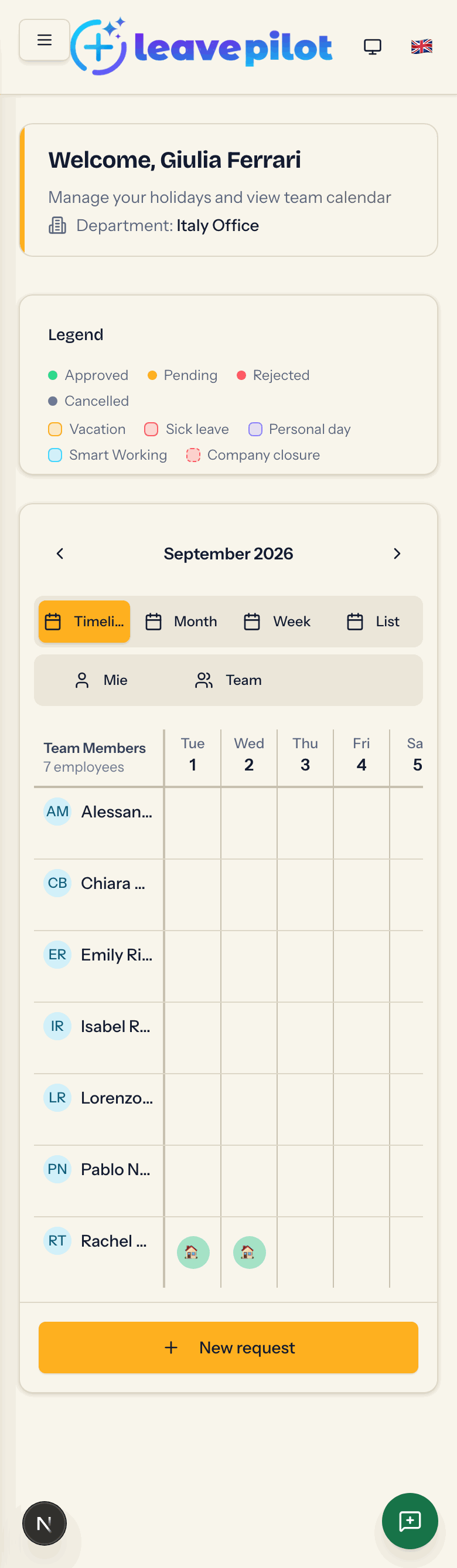
Below 768 pixels wide the calendar changes shape.
- At the top, the arrows and the name of the month. In the Month, Week and List views, swiping left or right changes month; in the Timeline the finger scrolls the days and the month changes with the arrows.
- The views are Timeline (the default), Month, Week and List; the visibility selector has Mie (Italian for "mine", left untranslated in the interface) and Team.
- In the Month view each cell is coloured by the prevailing status and shows up to three events. Tapping a day with events opens that day's list, with the Add Request button at the bottom; tapping an empty day opens the new request straight away with that date.
- The Week view shows seven cards, one per day from Monday, with the name of the day, the date, the number of events, any company closure and the first two events, plus +N altri (Italian for "+N more") if there are others.
- The List view lists the events of the open month, each with name, status, Tipo, Periodo, Giorni and Note (Italian for "type", "period", "days" and "notes", left untranslated in the interface). If the month is empty you get No holidays found.
- At the foot of the card there is always the New request button.
Company closures
If the administrator has set closure periods (the week around mid-August, say), they show in the calendar on a light red background with the name of the closure. They are a visual cue only: absences on those days are counted as normal. See Public holidays, weekends and closures.
If the calendar does not load
You get Errore nel caricamento del calendario (Italian for "error loading the calendar", left untranslated in the interface) with the Riprova button (Italian for "retry"). If the problem persists, reload the page or sign out and back in.