Reports and exports
The Reports section: analysis period, statistics and charts, employee ranking, export to PDF and Excel, and the report with commentary written by artificial intelligence.
The Reports section (#reports) sums up how leave is used across the organisation and lets you export it.
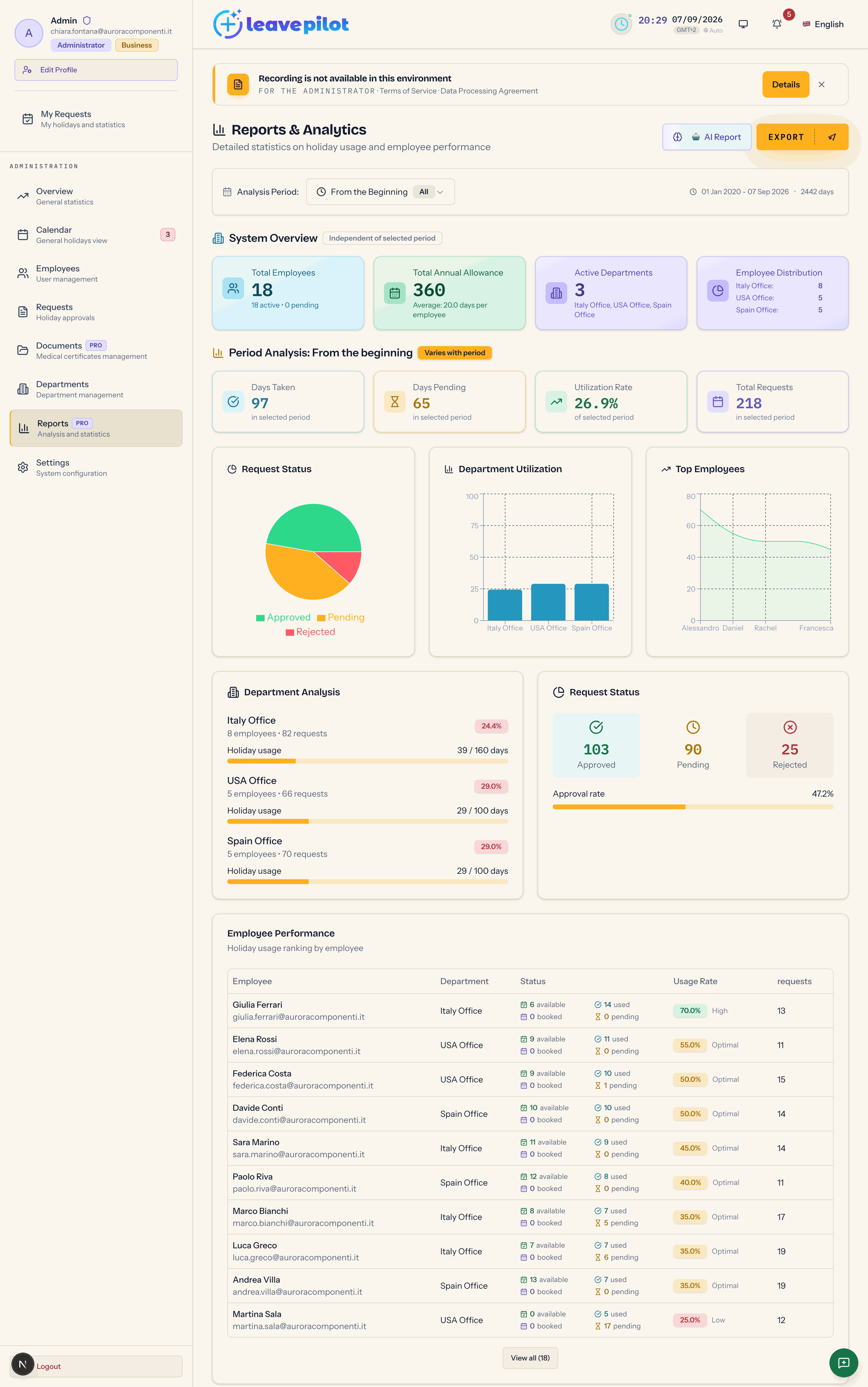
The analysis period
At the top, Reports & Analytics with the AI Report and Export buttons, and the Analysis Period selector:
| Item | Covers |
|---|---|
| From the Beginning | all data (default) |
| This Month, This Quarter, This Year | the current period |
| Previous Year | last year |
| Last 30 days, Last 60 days, Last 90 days | a rolling window |
| Custom Period | two dates of your choice, two years at most, never in the future |
Next to it you see the actual range with the number of days. A request belongs to the period in which the leave starts, not the one in which it was submitted, and all of its days are counted in that period.
System Overview
It does not depend on the period: Total Employees (with active and pending), Total Annual Allowance (the sum of the vacation allowances of active people with a limited allowance, and the average per person), Active Departments and Employee Distribution.
Period Analysis
This changes with the period you pick:
- the Days Taken, Days Pending, Usage Rate (days used out of the total allowance, as a percentage, for limited allowances only) and Total Requests cards;
- the Request Status pie chart (approved, pending, rejected, cancelled);
- the Department Utilization chart;
- the Top Employees chart, with the five highest usage rates;
- the Department Analysis panel: for each department, people, requests, usage percentage and a {used} / {allowance} days bar;
- Request Status with the Approval rate (cancelled requests do not count towards it);
- Employee Performance: the top ten by usage, with available, used, booked, pending, the Usage Rate (Low below 30%, Optimal up to 70%, High above that) and the number of requests.
Someone with an unlimited allowance stays out of the percentages and is never flagged as an anomaly. Hourly requests count as hours/8 in days.
Exporting to PDF or Excel
Export opens Export Report for the period you picked.
- Format: PDF - Professional Report, Excel - Analyzable Data or Both - Complete Package.
- Content: the Request History checkbox (Excel only). Statistics, charts, employee details and department analysis are always included.
- PDF Options: Cover Page. The PDF is A4 portrait.
- Excel Options: Excel Formulas and Separate Sheets (Summary, Employees, Departments, Requests, and a fifth sheet named Analisi Temporale, Italian for "temporal analysis", left untranslated in the file).
Press Export PDF, Export EXCEL or Export PDF + Excel: the files are built in the browser and downloaded; the window closes on its own after Report Generated Successfully!. The files contain people's names: treat them as confidential documents.
There is no CSV export and no filter by department or by type: the period is the only filter.
The AI report
AI Report opens Generate AI Smart Report for the period you picked. Choose the Output Format (HTML (Web View), PDF (Download) or Both) and press Generate AI Report. Generation takes up to twenty seconds or so and shows its progress.
The result is a document with charts, tables and a COMMENTARY section in four parts (Overview, Usage distribution, Departments, Requests), written in the language of the report and labelled Section generated automatically and not reviewed.
What the model receives
The commentary is written by an Anthropic artificial intelligence model, called directly with nothing in between, which receives aggregate figures only for the period: totals, averages, how many people fall into each usage band, the departments with at least three people (smaller ones are merged into "other departments" or left out), requests by status and by type. It never receives names, emails or rows about a single person. A final check throws the text away if it names a person, if it contains judgements about wellbeing or motivation, or if it makes recommendations: the report then comes out without a commentary, carrying the note The commentary is not available for this report.
Every generation is logged (date, organisation, period, model, outcome) for 24 months, without the text it produced. The document carries a machine readable marker identifying it as generated with artificial intelligence, as European regulation requires. The rules of use are in AI instructions for use.
Format and limits
- In production the AI report is delivered as HTML: it opens in a new tab and, if the browser blocks popups, it is downloaded instead and the Popup Blocked window appears with instructions for allowing them. To get a PDF use Print › Save as PDF in the browser; if you had asked for the PDF, the message PDF temporaneamente non disponibile (Italian for "PDF temporarily unavailable", left untranslated in the interface) reminds you of it.
- If AI analysis timeout appears, the period is too wide: try again with a shorter range.
- There is no limit on how many reports you can generate.
What the numbers mean
Reports use the same calculations as the dashboard: taken are approved absences that have already started, booked are the future ones, and the vacation allowance covers vacation only. The definitions are in Leave types and balances.