My requests (administrator)
The administrator's personal area: their own leave, the calendar, the history and the profile, and who approves an administrator's requests.
An administrator takes holidays too. The My Requests item in the side menu (#my-requests) opens a personal area that mirrors the employee one.
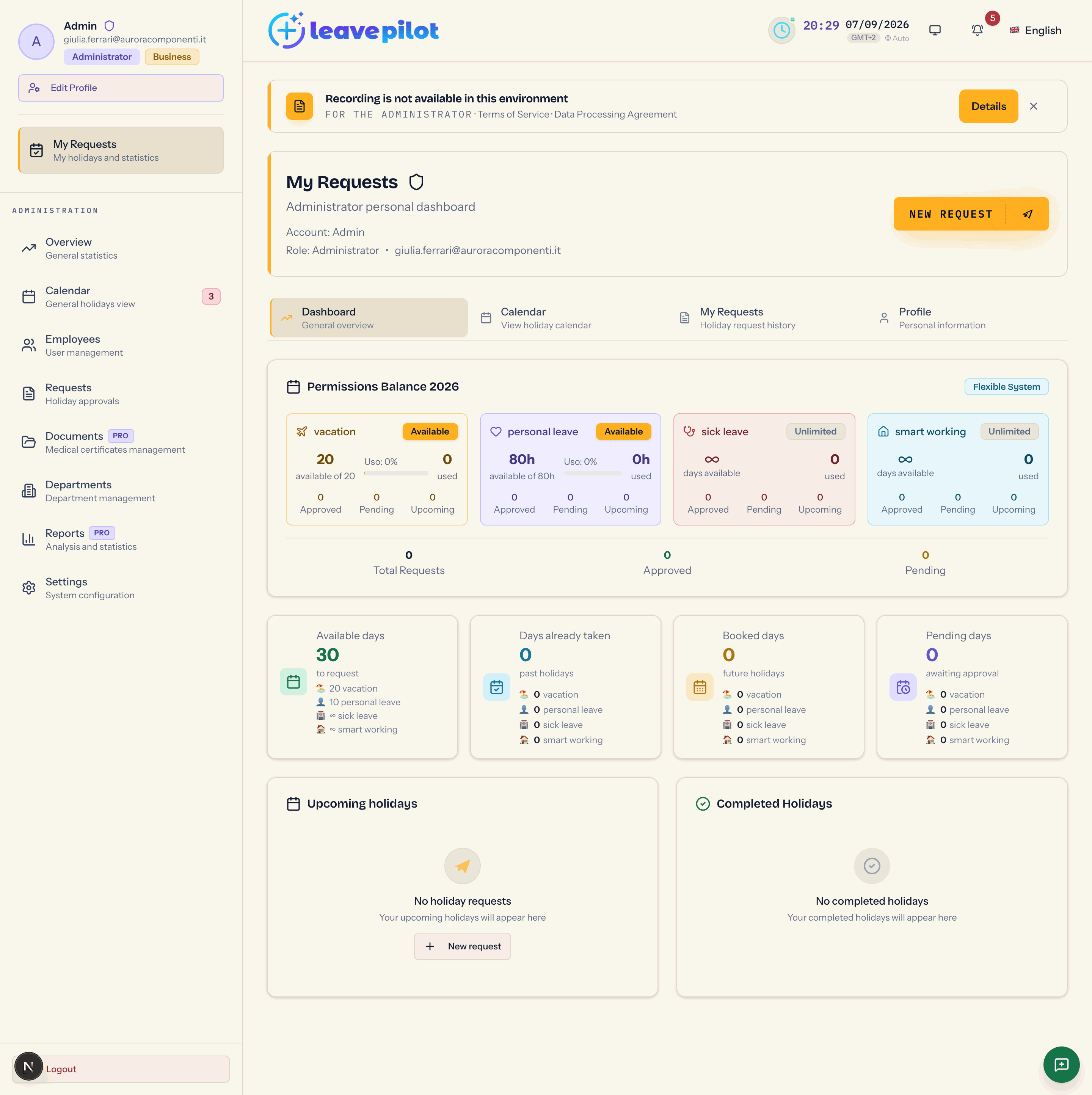
The layout
At the top, My Requests with Administrator personal dashboard, Account: {name}, Role: Administrator • {email} and the New Request button. Below, four tabs:
- Dashboard (General overview): the Permissions Balance panel by type, the four statistics cards, Upcoming holidays (with the My holidays / Team holidays choice) and Completed Holidays;
- Calendar (View holiday calendar): the full calendar, opened on your own leave;
- My Requests (Holiday request history): the table with search, filters and actions;
- Profile (Personal information): the card with role, status, department, Annual Holiday Days and Remaining Days.
Everything else works as it does in the employee area: see Your personal dashboard, The calendar and My requests.
Submitting a request
New Request opens the Create New Holiday Request window with the same four step form employees use. At the end you see {type} request submitted successfully! or {type} request automatically approved!.
Who approves an administrator's requests
It depends on the Admin holiday requests setting in Request approval:
- Only other admins (default): the request starts pending and another administrator decides on it. If you are the only active administrator, it is approved automatically, since otherwise nobody could do it.
- Automatic: the request starts already approved.
With Approval Mode set to Automatic approval, every request starts approved, yours included.
Actions on your own requests
In the My Requests table an administrator finds, besides Delete, the Cancel request button on pending requests: the request moves to Rejected with the reason Cancelled by employee, and you receive the rejection email yourself. The bulk actions bar is the same one employees see, with Approve, Reject and Delete, but for you the first two actually work: the ban on deciding on your own requests applies only to people who are not administrators. The organisation's self approval rules apply when the request is created, not afterwards.
Your requests also show up in the Requests section, together with everyone else's.