Departments and managers
Creating and editing departments, naming the manager, assigning city and country, managing the people assigned, changing the country of a whole department.
The Departments section (#departments) organizes people into departments. A department has a name, a city, a country and, if you want, a Manager who approves the requests of that department.
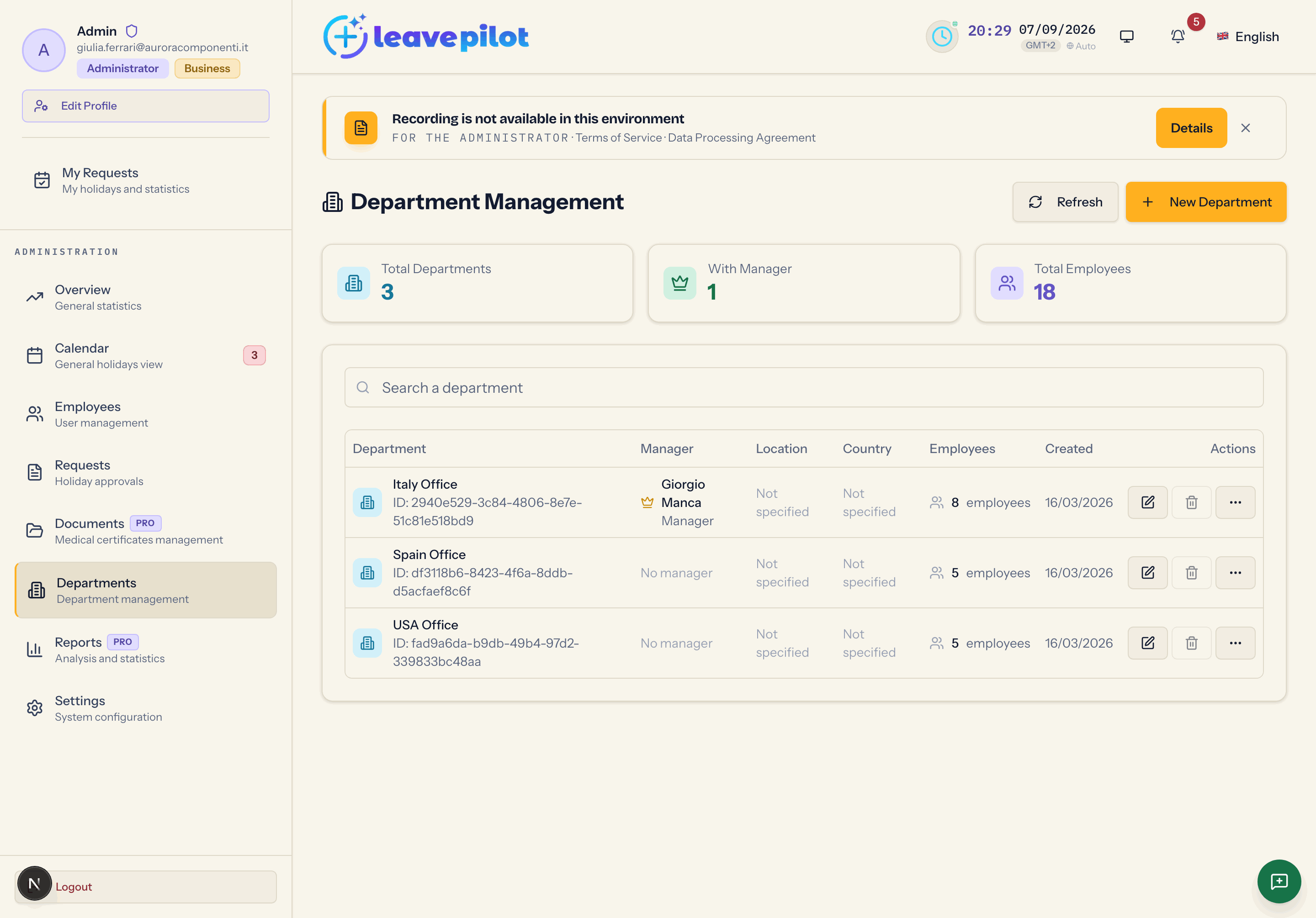
At the top
Department Management, the Refresh and New Department buttons, three counters (Total Departments, With Manager, Total Employees) and the Search a department box, which searches by name, city or manager.
The list
| Column | Contents |
|---|---|
| Department | the name |
| Manager | the manager's name, or No manager |
| Location | the city, or Not specified |
| Country | the country, or Not specified |
| Employees | how many people are assigned |
| Created | the creation date |
| Actions | edit, delete, details |
Creating a department
New Department opens Create New Department:
- Department Name, required (2 to 100 characters, unique within the organisation);
- City;
- Country, among the organisation's active countries;
- Manager, among the active people, administrators included.
Press Create Department. If the name already exists you get Dipartimento con nome "{name}" già esistente (Italian for "a department named {name} already exists", left untranslated in the interface).
The manager
A department manager is the person who can approve and reject the requests of the people assigned to that department, but only if you chose Admin and department manager in Request approval. In that mode they also receive the email for every new request in the department. They can never approve their own requests.
One person can manage several departments. In their own area they see the Manager · {departments} badge and the Team Requests tab: see Approving your team's requests.
You can name an administrator as Manager, but it changes nothing: an administrator already approves every request in the organisation, and the Team Requests tab does not appear in their area, since it exists only for employees. If you want a team lead to decide on their own department without seeing everything else, pick someone with the Employee role.
Editing a department
The pencil opens Edit Department with the same fields. Press Save Changes.
Changing a department's country
If you change the Country of a department that already had one, Warning: Department Country Change appears before saving, because the department's country decides the public holidays of anyone who inherits it. Choose the Update mode:
- Selective Update (Recommended): updates only the people who inherited the country from the department; anyone who picked it in their own profile is left alone.
- Forced Update: updates everyone in the department, replacing personal choices as well; they will all carry the From department badge.
The Employees that will be updated panel tells you in advance how many people change. You confirm with Confirm Change.
Assigning and removing people
- A person is assigned to a department when they are invited, or from the edit window in the Employees section. People can also change their own department from their profile.
- The three dots open Department Details, with the Assigned Employees ({n}) list: next to each name there is a button to remove them from the department. The person stays in the organisation, with no department.
Deleting a department
The bin is active only if the department has nobody assigned; otherwise move or remove the people first. You confirm in the browser dialog. If the department had a manager, that person simply stops being a manager.
Departments and allowances
To give a department vacation or leave allowances different from the general ones, use the per department overrides in Leave types and allowances. The two options in the Settings › Departments section are described in Departments (settings).